How to Do the Hotel Lobby AI Trend with Seedance 2.5
Learn how to recreate the Hotel Lobby AI trend with Seedance 2.5 using character references, a motion clip, clear prompts, and audio alignment tips.
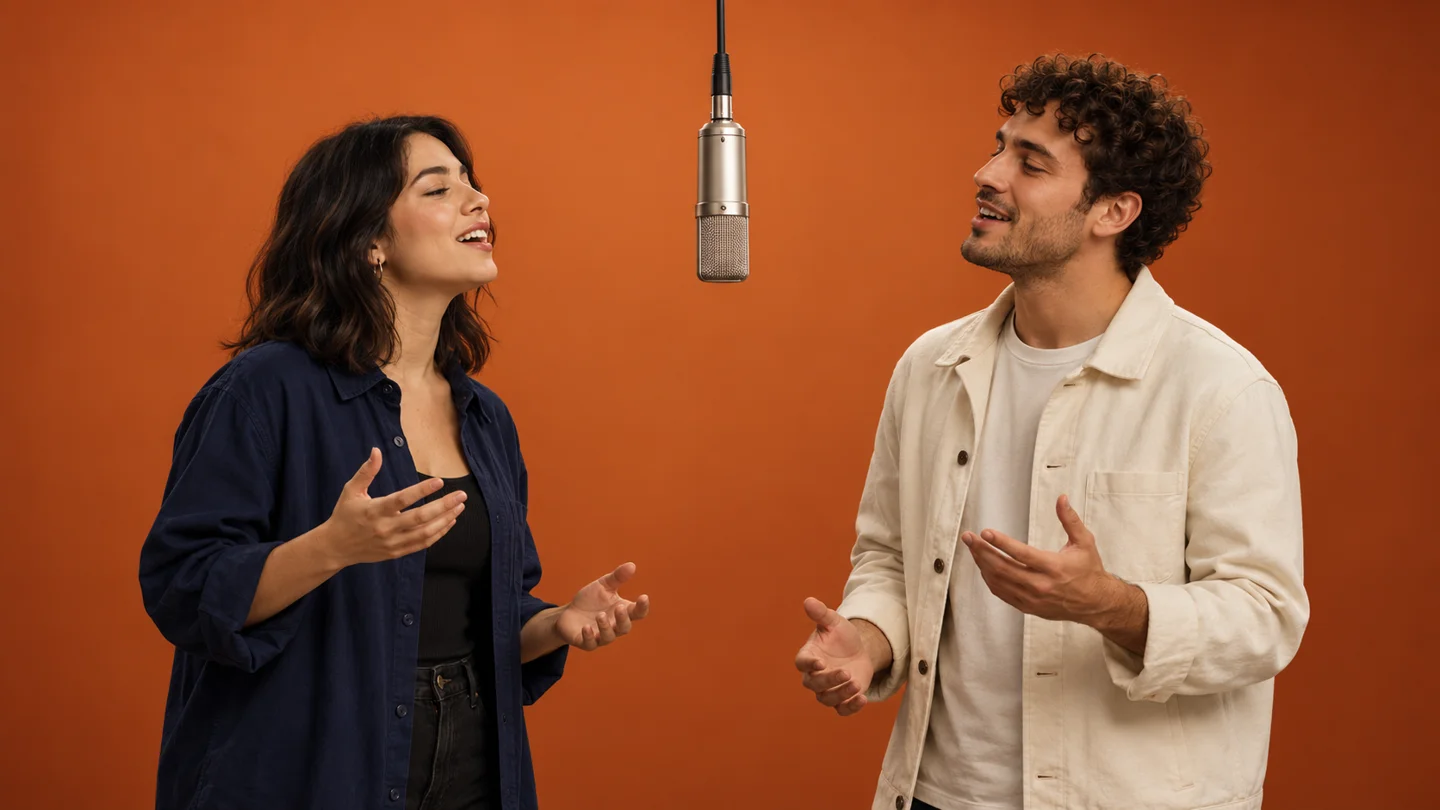
To make a Hotel Lobby AI video with Seedance 2.5, prepare a reference for each performer, choose a motion clip, assign the two roles, and generate a single continuous duet. Then check the performance against your soundtrack before exporting. The key is to keep appearance, movement, and audio organized as separate inputs.
This guide explains a reference-based workflow. The interface and available settings depend on the service hosting Seedance 2.5. For a ready-made scene, you can also explore our Hotel Lobby template.
What Is the Hotel Lobby AI Trend?
The recognizable setup is a two-person performance in an orange studio with a microphone suspended between the performers. The creative variation is the cast: replace the familiar duo with your own people or original characters while retaining the back-and-forth energy. It is a performance-video trend, rather than a video of an actual hotel lobby.
What You Need Before You Start
- A clear photo of each performer, with enough facial detail to inspect at normal viewing size.
- Character references that agree on hairstyle, clothing, proportions, and facial features.
- A short motion reference with the gestures and framing you want to follow.
- Access to a Seedance 2.5 workflow that accepts the required image and video references.
- A soundtrack you can use, plus an editor for timing and final export.
Choose the intended duration before preparing the reference. A 15-second tutorial workflow needs matching reference and audio segments and a host that supports that output length. A shorter template preview is not evidence that every service supports the longer duration.
Build Consistent Character References
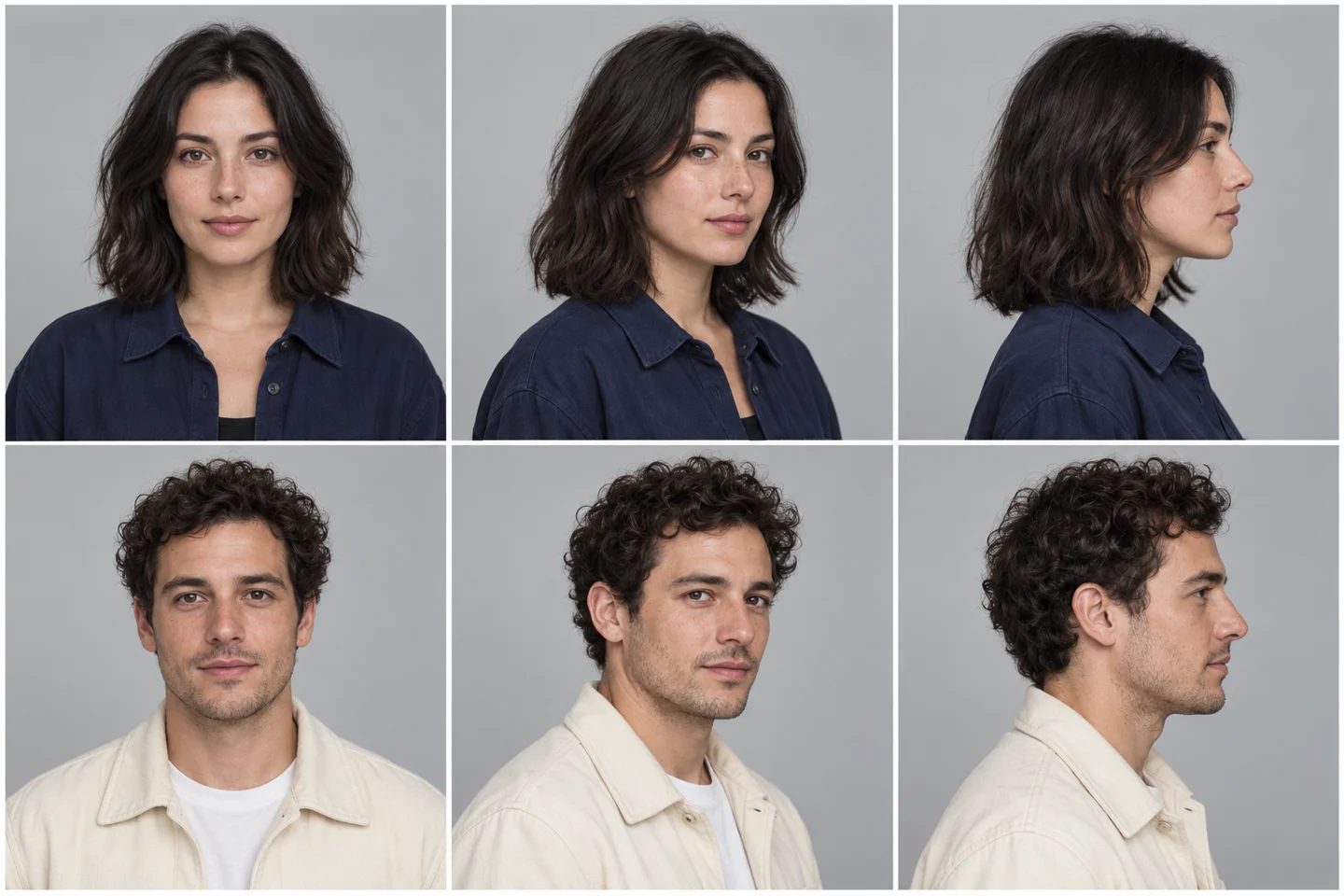
Begin with two distinct subjects. An evenly lit face without sunglasses, heavy filters, or an object covering the mouth gives you a more useful starting point than a tiny face cropped from a group photo. Decide on clothing early, especially if the motion includes turns that reveal sleeves, shoulders, or the back of a jacket.
Check more than the front view
A convincing front portrait can still produce a different-looking profile. Inspect the eyes, nose, hairline, and jaw across your references. Reject a view that changes the person instead of relying on the video model to reconcile contradictory inputs. You can explore additional views with our Character Turnaround and Face Angle Changer tools.
Keep each role unambiguous
Save one reference set for the left performer and another for the right performer. Use names such as “left performer” and “right performer” consistently in your notes. If your host numbers attachments automatically, check its preview before writing image references into the prompt; upload order is not universal across services.
Prepare the Motion Reference
Choose a continuous section with a clear start and finish. Watch it without sound first: identify which person leads, when the other responds, and where hands cross the face. Those moments deserve extra attention when you inspect the generated result.
A simplified outline clip can help separate choreography from the original performers' appearance. Treat it as a motion guide, not as a style instruction: the desired result can still be photographic. If your reference contains clothing or accessories you do not want, describe the intended wardrobe explicitly. This is a workflow choice, not a guarantee that every unwanted detail disappears.
Keep the camera description consistent with the clip. A stationary duet reference and a request for a sweeping orbit introduce competing directions. For this scene, start with steady framing and let the performers supply the movement.
Generate the Duet with Seedance 2.5
Attach your motion and character references in the hosting tool, select Seedance 2.5, and confirm how that tool identifies each attachment. Use the references to assign roles, then describe the setting and the action in plain language. Review the supported duration, aspect ratio, and displayed cost before submitting.
A prompt you can adapt
Replace the bracketed fields and reference names below with your cast and your platform's attachment syntax. This is an original starting prompt, not the prompt used to create the example video above.
Create one continuous realistic studio duet. Use [MOTION CLIP] to guide the sequence and timing of gestures, while [LEFT CHARACTER REFERENCE] defines the person on the left and [RIGHT CHARACTER REFERENCE] defines the person on the right. Keep their identities and outfits separate. Place them against a warm orange studio background with a suspended silver microphone between them. Follow the reference framing with a steady camera. Preserve the chosen clothing: [LEFT OUTFIT] and [RIGHT OUTFIT]. Keep faces readable during turns and hands natural during expressive movements. Finish on a stable composition. Use the duration and landscape format selected in the generation settings.
Review before generating again
Watch the first result from beginning to end. Note the exact moment of a problem and change one relevant instruction or reference at a time. If the faces drift during a turn, revisit the side-view references. If the roles switch, check the attachment mapping. More adjectives rarely solve a mismatched input.
Align the Soundtrack and Export
Do not assume the generated clip contains the intended song. Import the result and your audio into an editor, place their starting points together, and compare a visible gesture with the corresponding beat. Check the middle and ending as well as the first second: a good opening match can still drift later.
If the video and audio have different lengths, choose matching segments before making fine timing adjustments. A simple offset can fix a shifted start; it cannot fix every mouth shape or a performance that changes speed unevenly. Preview the exported file itself to confirm that the audio track is present and the picture fills the intended frame.
Fix Common Problems
The two performers trade appearances
Check that the references contain only the intended subject and that each attachment has a unique role in the prompt. Avoid giving both subjects the same ambiguous reference name.
Hands or profiles look distorted
Review the input at the same moment. Strong occlusion and a fast turn make the result harder to judge. Try a clearer reference or a less demanding section, then inspect that section again after generation.
Clothing changes halfway through
Make the wardrobe consistent across the reference images. Remove conflicting outfit descriptions and watch transitions around crossed arms or turns, where details can change unnoticed.
The clip has sound, but the lips do not match
Audio presence and lip synchronization are different checks. Adjust the audio offset only when the whole performance is shifted. Local mouth-shape errors may require a new generation or a different clip rather than a timeline adjustment.
Frequently Asked Questions
Can I start with just two photos?
Yes, two clear photos are a starting point for preparing the cast. Whether the final generation accepts those directly or benefits from additional references depends on the hosting workflow. Review consistency before spending credits on repeated attempts.
Is a line-drawing reference required?
It is one way to reduce appearance detail in a motion guide. Check which reference formats your selected tool accepts. Do not assume that every Seedance interface includes an outline-conversion feature.
Does the video have to be 15 seconds?
No. Match the intended segment to the duration supported by your chosen service. The existing template linked from this guide uses a 10-second scene; it is a separate preset workflow.
Is this an automatic face swap?
The workflow asks a generative model to recreate a performance using references. It can change details beyond the face, so inspect the full frame, both performers, and their clothing before sharing.
Preview the orange-booth duet and prepare your two performer photos in our existing workspace.
Explore the Hotel Lobby Template →Further reading: Seedance 2.5 model overview and Kapwing's Seedance 2.5 workflow. This guide uses original writing and illustrative assets; no paid generation test was conducted for this article.