Give your subject a different stance. Upload a photo, choose a pose, and describe the details you want to keep—from their expression to their outfit.
Click, drop, or paste imagesJPEG, PNG or WebP · Up to 10 MB
Sign in to try it for free
Change Photo Poses with AI Pose Changer
A different posture changes how a photo feels. Explore pose ideas for fashion, portraits, and visual storytelling without confusing a body movement with a camera angle.
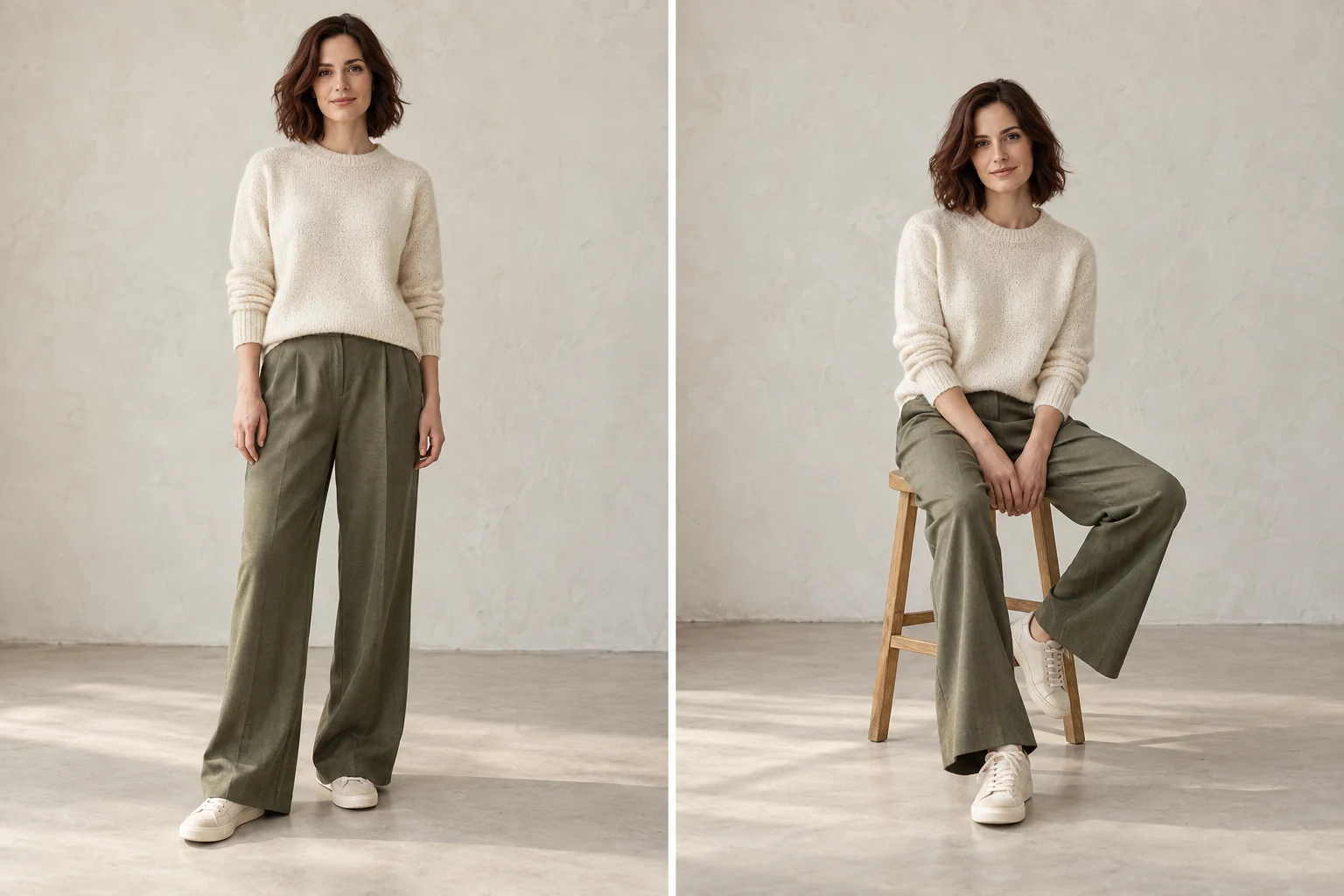
From Standing to Sitting
Try a seated composition for a relaxed editorial feel, or a standing pose that shows the outfit more clearly. Describe where the subject sits and how the legs should rest. Keep enough space in the frame for the new posture, especially when moving from a tight portrait to a wider composition.
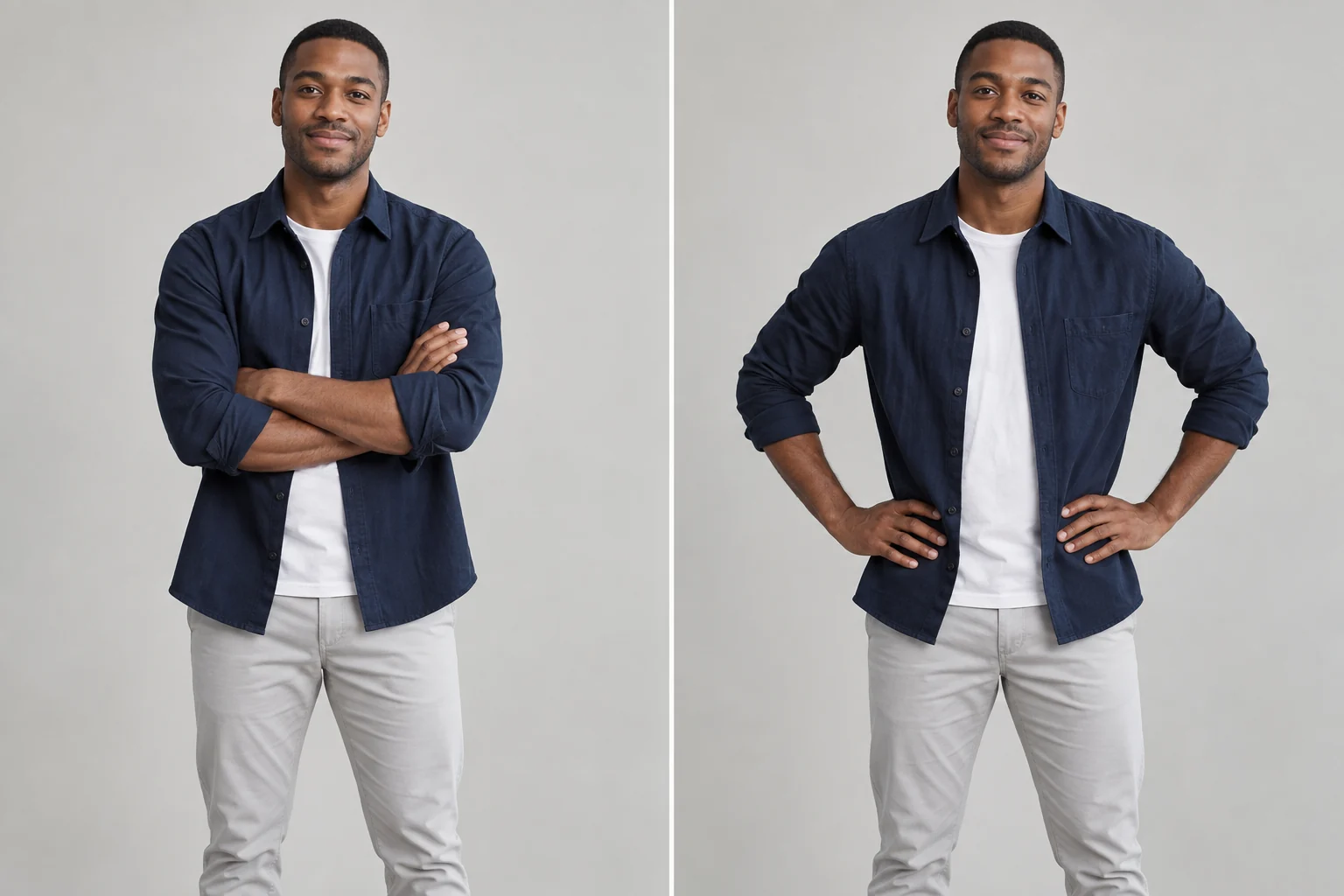
Crossed arms can give a portrait a composed feel; hands on hips can emphasize the silhouette. Start with one simple change and specify relaxed shoulders and natural fingers. Small anatomical details may change during editing, so check hands, elbows, and clothing folds before using an image.
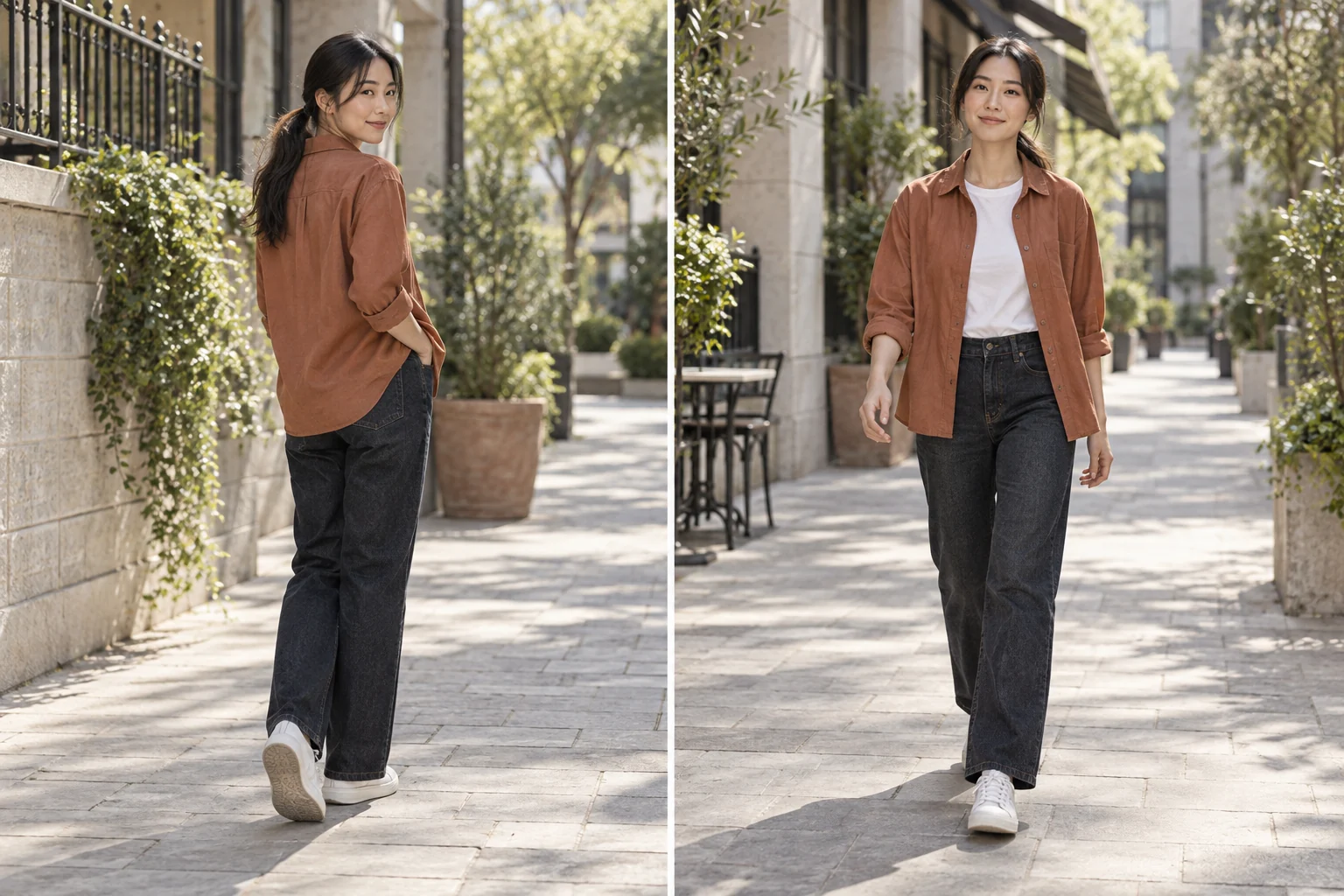
A glance over the shoulder suggests an encounter; a walking stance suggests movement through a scene. Describe the direction of the body and the gaze separately. This AI pose changer is for still-image edits—a walking pose does not create an animated walk cycle.
AI-generated pose illustrations. These examples explain editing ideas and are not verified outputs from this tool. Actual results vary.
AI Pose Changer for Portraits and Characters
01
Fashion Concepts
Compare a few posture ideas while planning an editorial or lookbook. Ask to preserve the outfit, then inspect seams, patterns, logos, and fit: an AI edit is not a substitute for a verified product photograph.
02
Portrait Variations
Explore a more relaxed or confident posture from a clear portrait reference. A visible torso and arms provide more useful context than a tightly cropped headshot. Preserve the expression in the prompt when it matters to the mood.
03
Character Blocking
Sketch the gesture you want for a character or storyboard frame. Use concrete instructions such as seated upright, one hand resting on a knee, or walking toward the left. Treat the result as a pose concept to review and refine.
How to Use the AI Pose Changer
One Subject, Different Body Positions
1Standing
2Sitting
3Walking
1
Upload a Clear Reference
Start with one well-lit image of a single subject. Show the body parts you want to reposition. Avoid heavy occlusion, overlapping people, or a crop that cuts through the hands.
2
Pick a Pose and Refine It
Choose one of the six pose presets to fill the prompt. Edit the text to describe hand placement, gaze, and stance, then list the appearance and background details you want to keep.
3
Review Before You Download
Inspect identity, limb proportions, fingers, shadows, and garment details in the edited image. Simplify conflicting instructions if a pose looks unnatural, and use a reference with more visible body context.
It uses a reference photo and a written instruction to request a different body position in a still image. You can describe standing, sitting, crossed arms, hands on hips, a look over the shoulder, or a walking stance. The result is an image edit, not a rigged 3D character or motion-capture file.
Q
Will my face and clothes stay exactly the same?
Exact preservation is not guaranteed. Explicitly ask to keep the face, hair, expression, clothing, and setting, and use a clear reference. A substantial pose change may alter facial details, garment folds, accessories, or body proportions. Check the result carefully rather than treating it as an exact record of the original person or product.
Q
How is changing a pose different from changing a camera angle?
A pose change moves the subject: for example, bending an arm or sitting down. A camera-angle change moves the viewpoint around a subject whose posture stays similar. Use Character Turnaround for a set of viewing angles; use AI Pose Changer when you want a different stance or gesture.
Q
Can I describe my own pose instead of using a preset?
Yes. Each preset fills the editable prompt, so you can replace or expand it. Describe one clear posture, then specify the arms, hands, gaze, and details to preserve. Avoid contradictory directions such as sitting and walking at the same time.
Q
What photos work best for pose editing?
Use a sharp, well-lit photo with one clearly separated subject. A full-body or three-quarter image gives more context for standing and walking poses. If the source hides a hand, leg, or the back of an outfit, any newly revealed detail must be inferred and may be inaccurate.
Q
Does a walking preset create a video?
No. It describes a single still-image stance that suggests walking. It does not produce a walk cycle, video animation, or a set of temporally consistent frames. For moving-camera concepts, explore the separate AI Camera Movement page.
Q
Can I use another photo as a pose reference?
The editor accepts additional reference images. Explain which image supplies the subject and which supplies the pose, rather than leaving their roles ambiguous. This is a text-guided edit, not a skeleton-matching system, so exact alignment to a reference is not guaranteed.