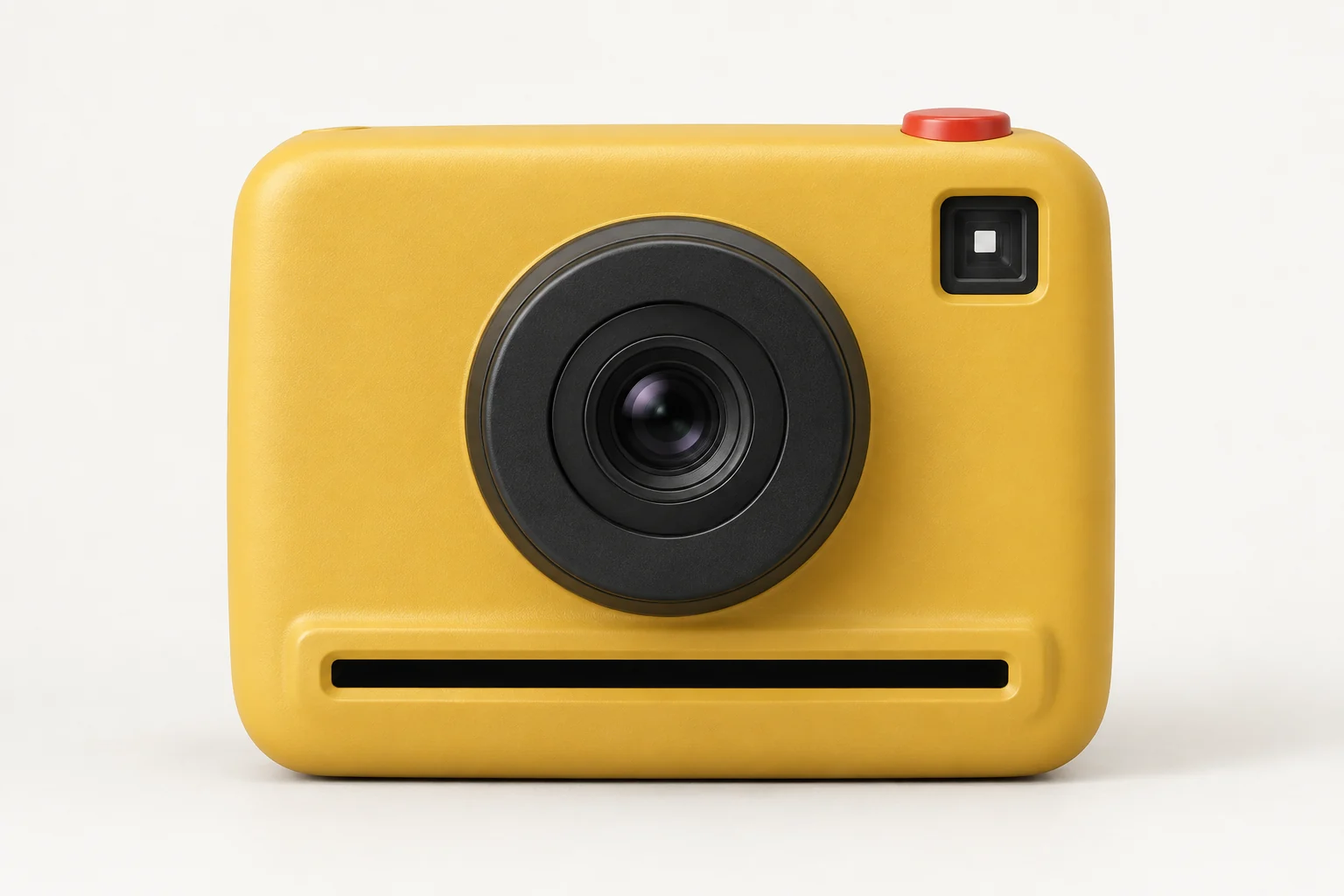
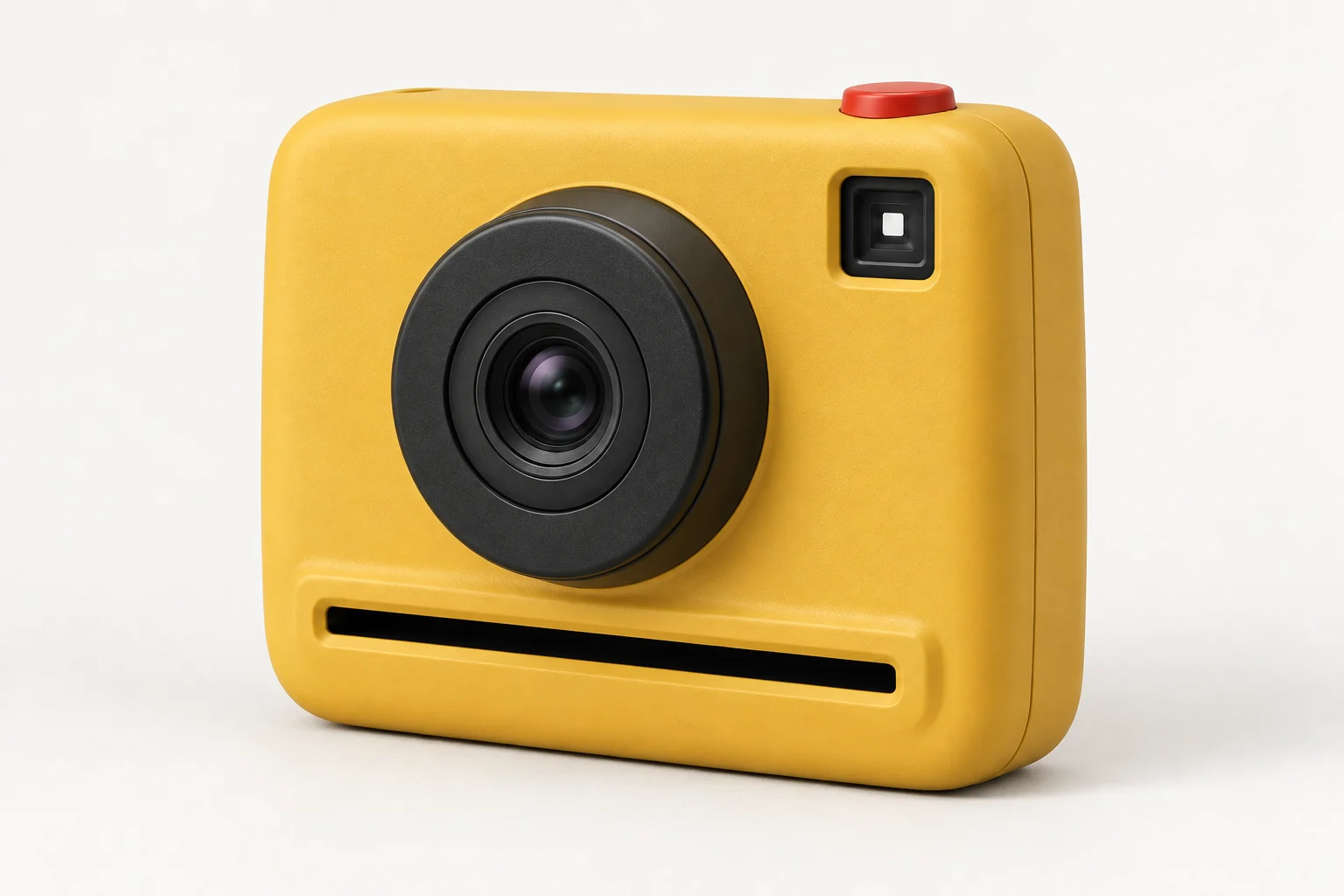
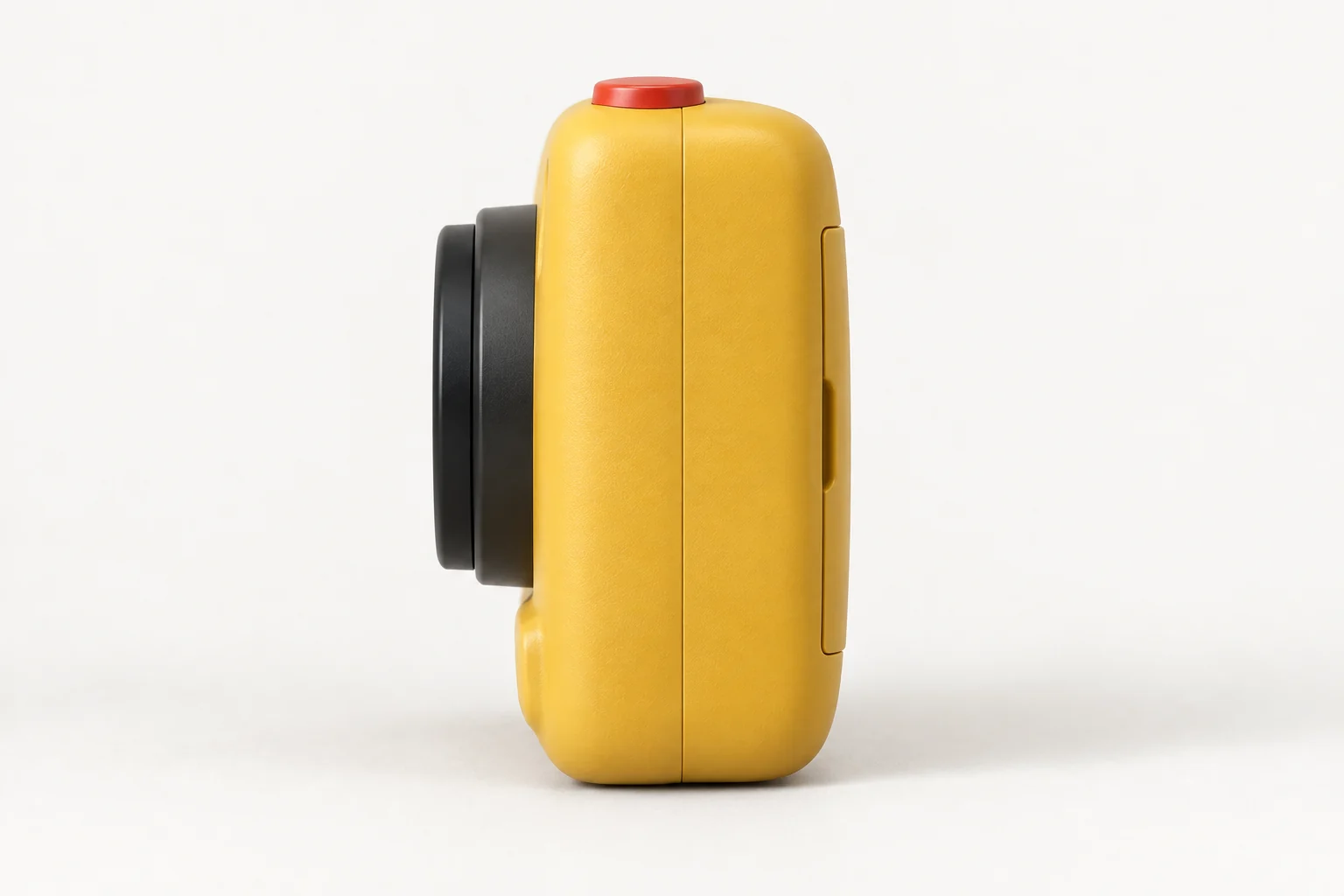
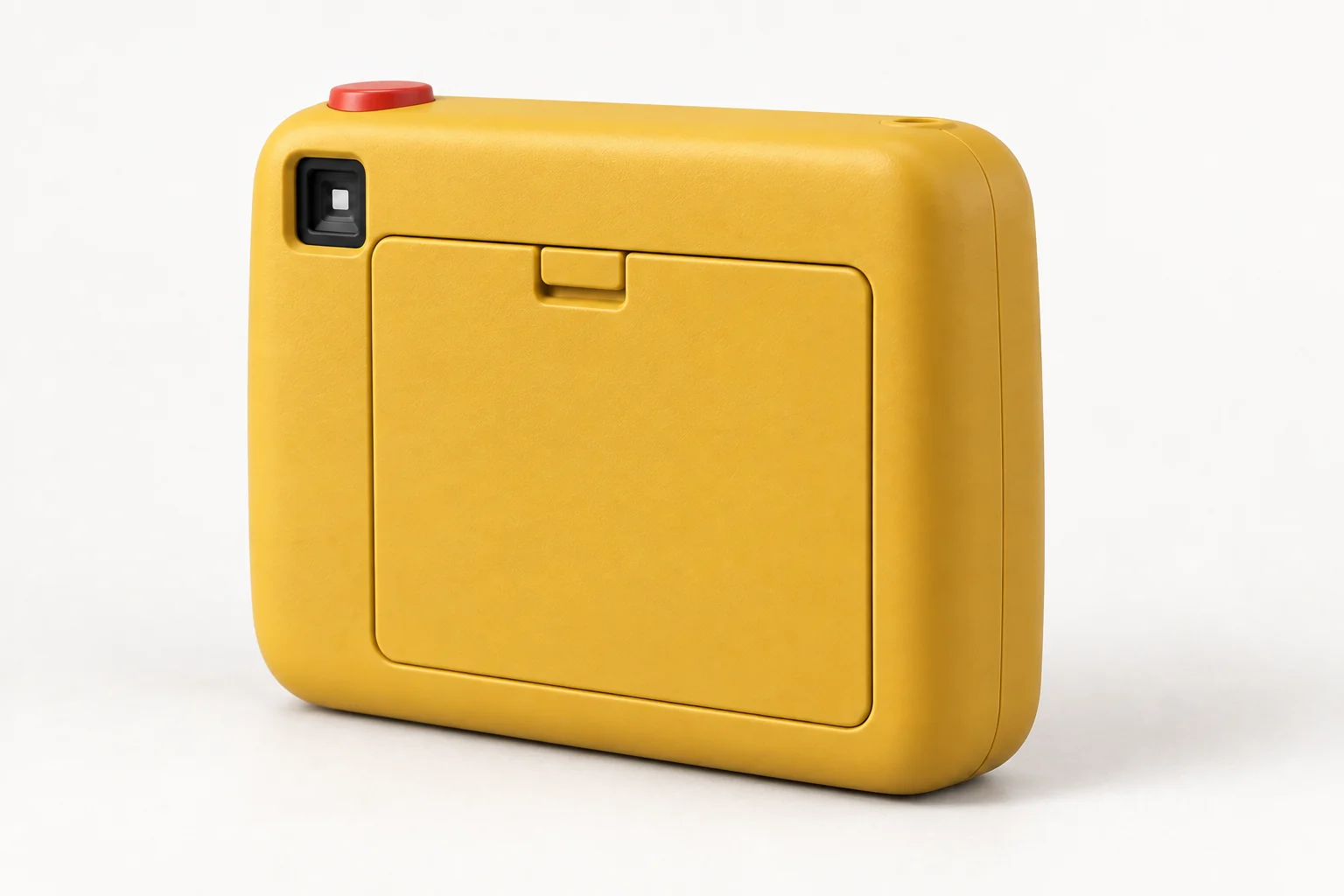
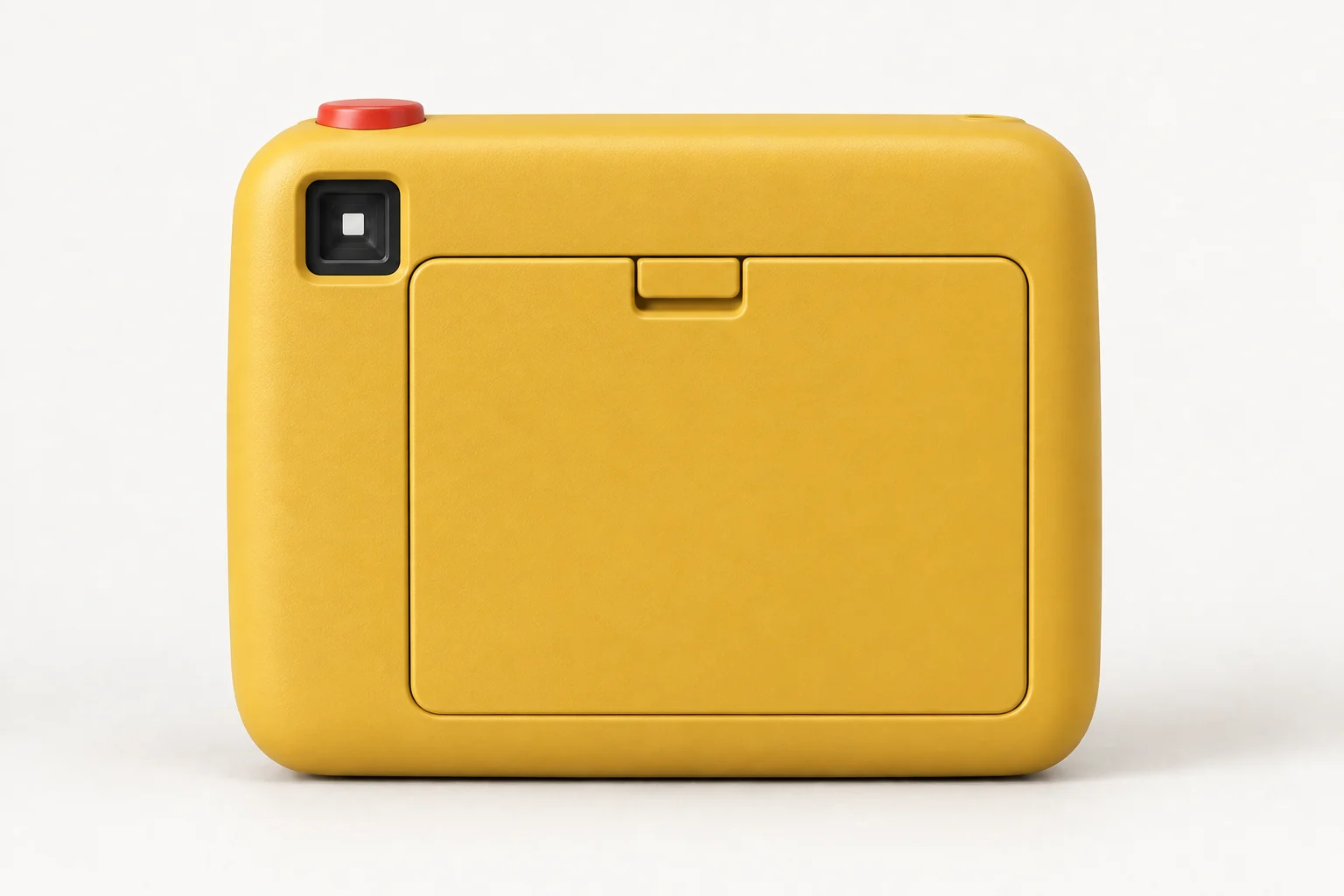
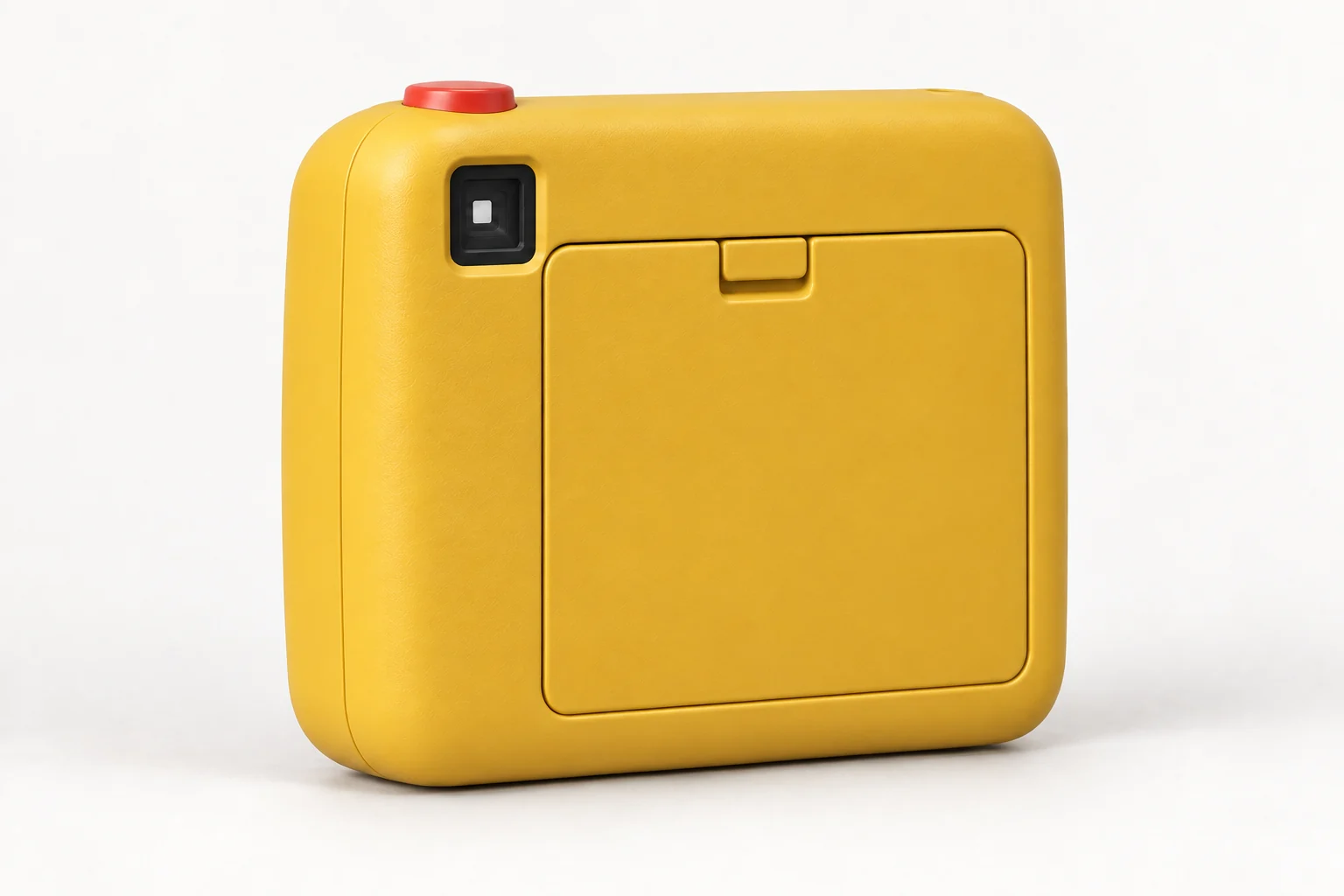
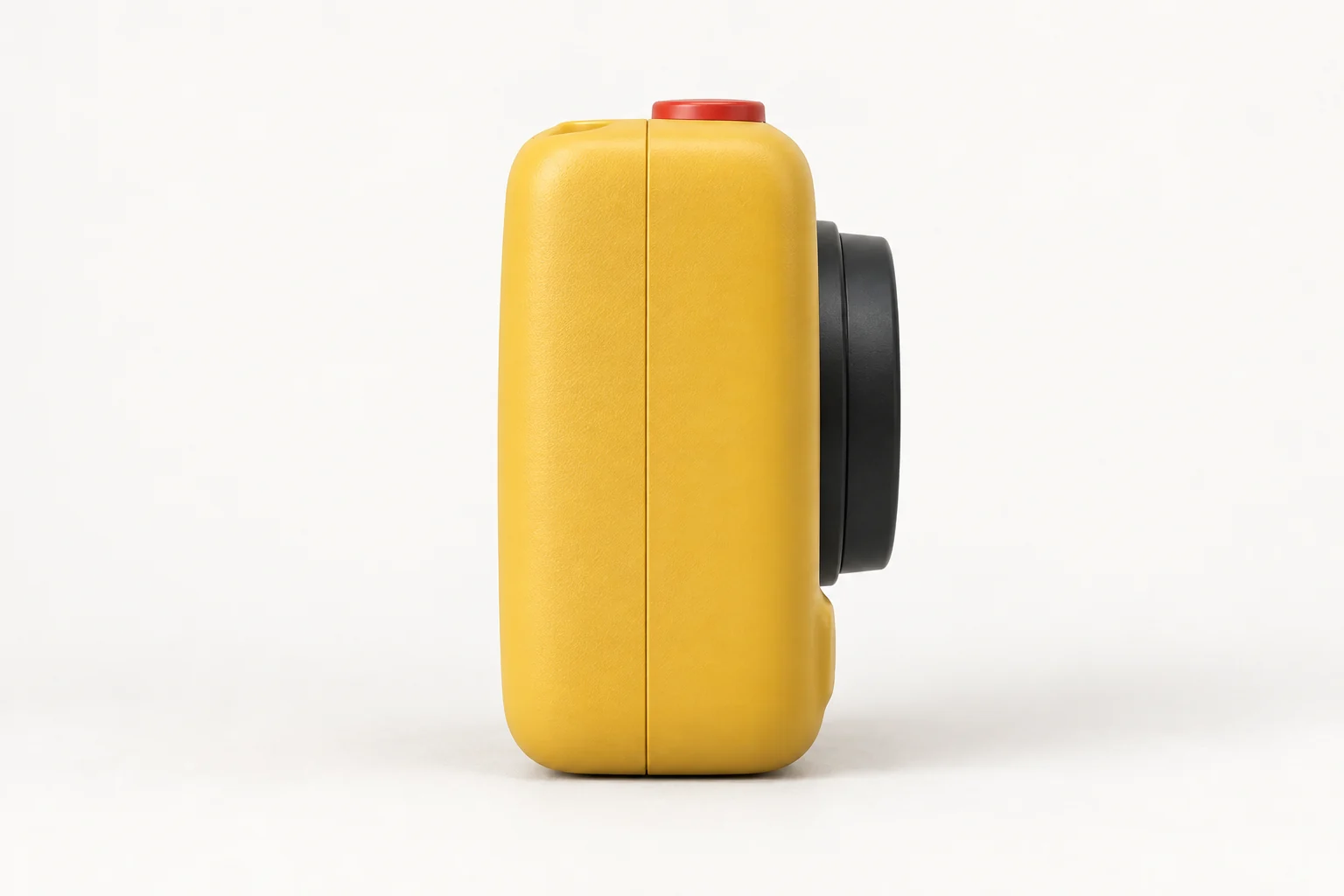
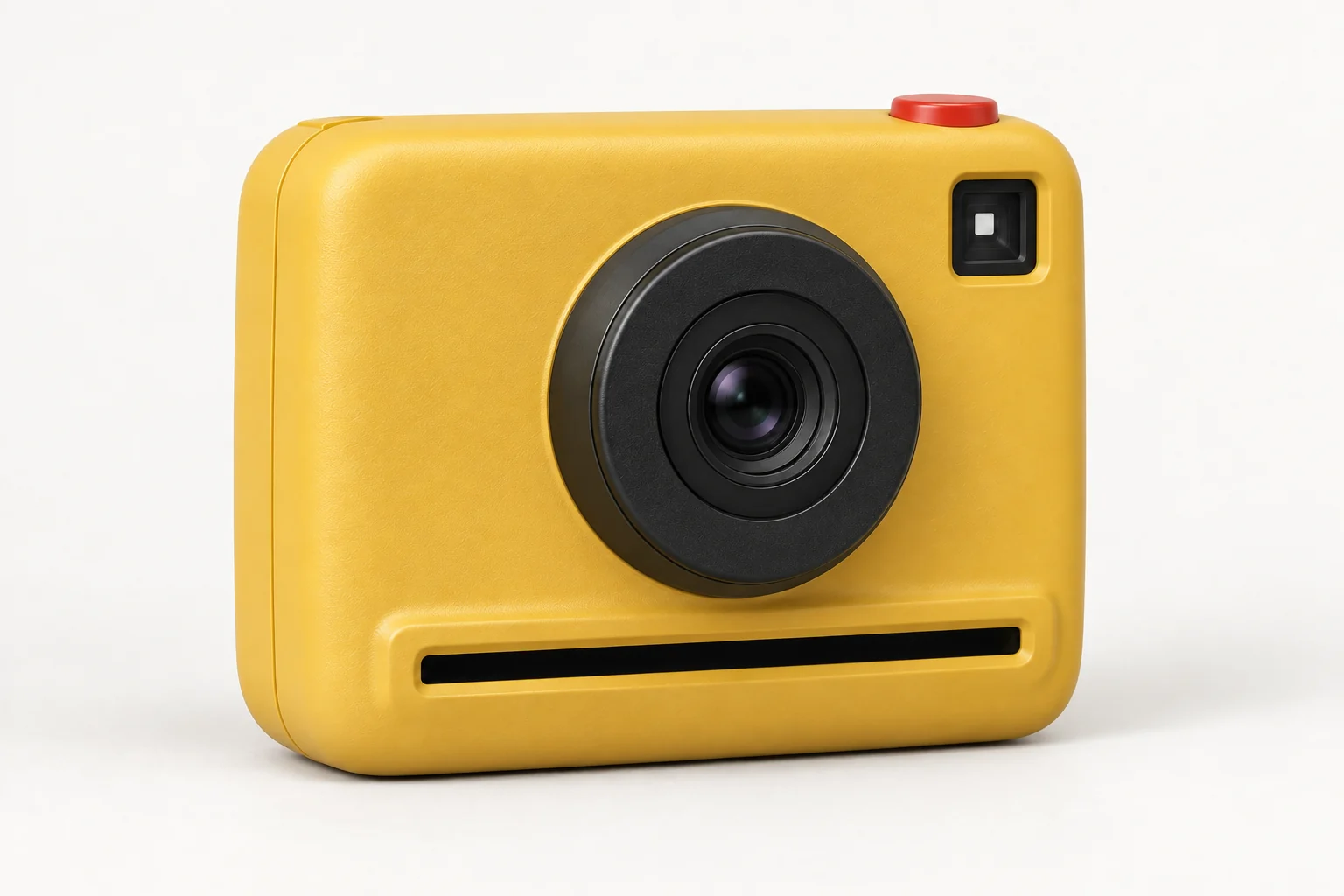
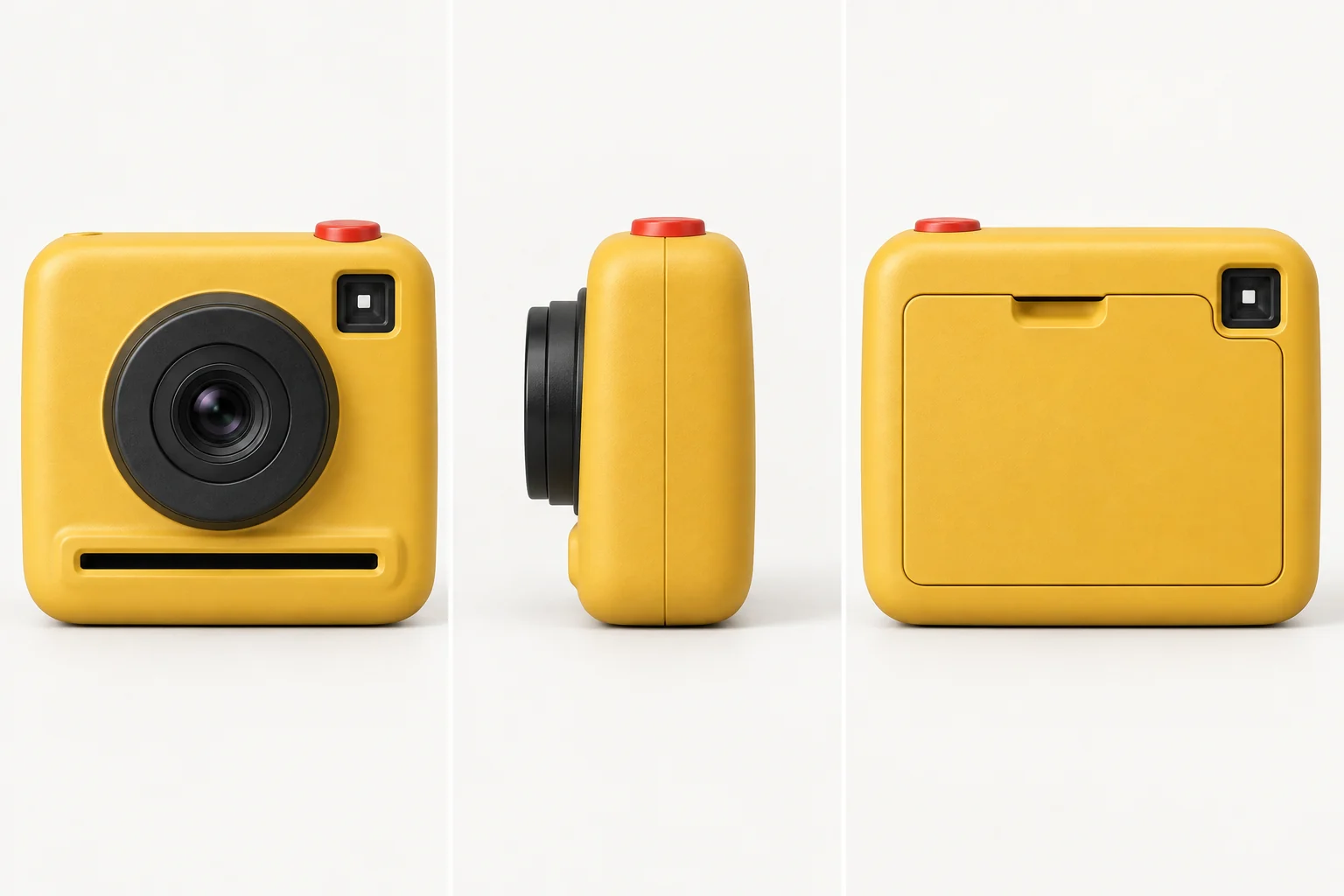
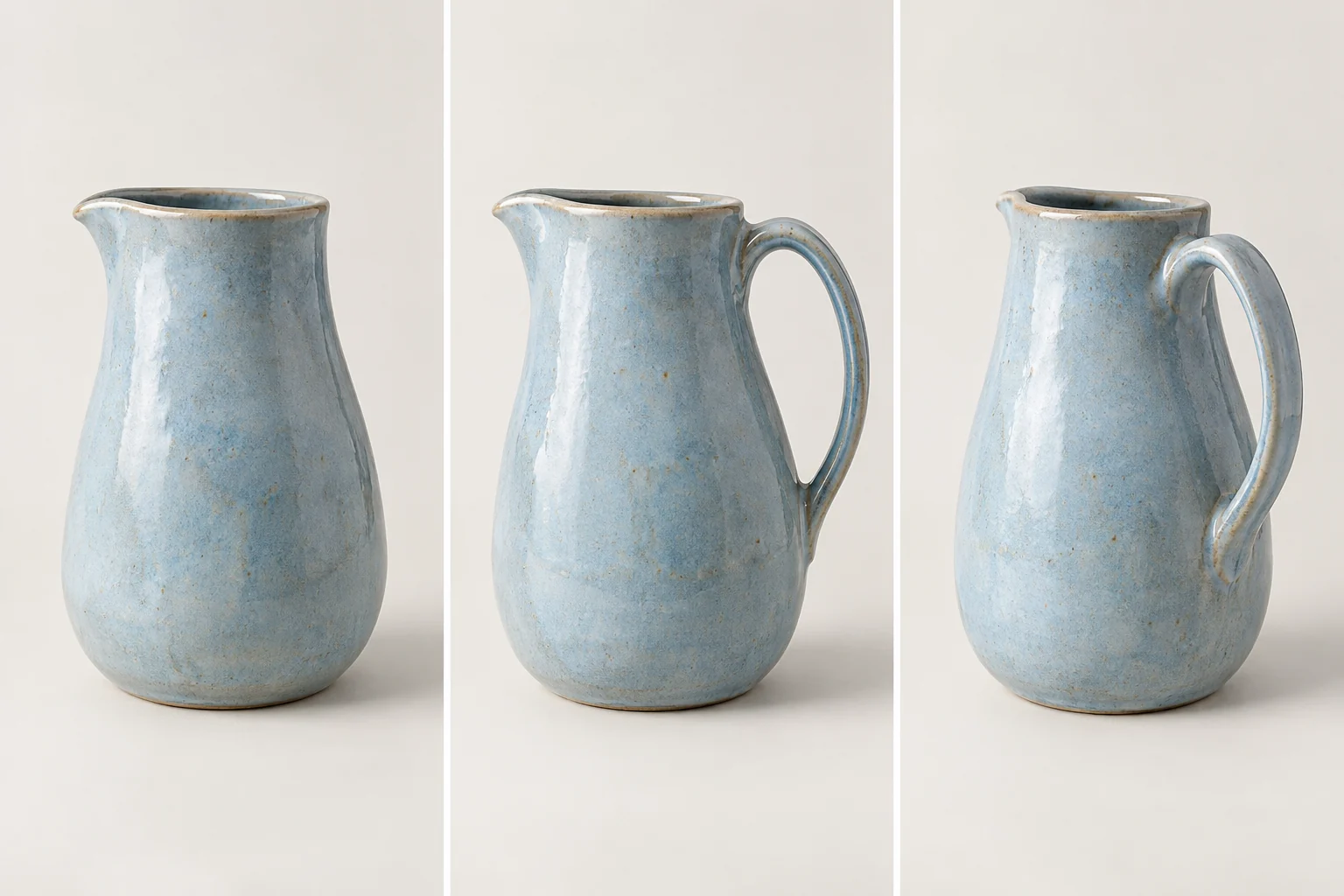
Explore a full turn with an interactive 3D image spinner. Drag through eight illustrated views, inspect each angle, and prepare your own image for a turntable.
Set Up Your 3D Image Spinner
8 views · 45° steps · Level camera
Keep the complete subject in frame. Hidden surfaces will need to be inferred.
0°
AI-generated example · Not your result
Drag left or right, or use the arrow keys
Explore Every Angle with a 3D Image Spinner
A turntable is about the relationship between views—not just a collection of different pictures.
Plan a 360 product video
Use eight angles to plan how a product will be presented around a full circle. A step-by-step preview helps you notice silhouette changes before editing a 360 product video. Generated views cannot replace real product photography: verify labels, materials, proportions, and hidden details before publishing.
An image orbit changes the viewing direction while the subject stays in place. An orbit 360 sequence returns to the starting viewpoint. Keep camera height, framing, and subject scale consistent so the different views remain easy to compare.
For a ceramic object or sculptural prop, 360 rotation reveals how the outline changes with the viewing direction. AI must infer surfaces hidden in the source image, so a back view is an interpretation—not evidence of the real geometry.
AI-generated illustrations. These examples are not outputs from an uploaded image or a verified generation run.
3D Image Spinner Examples and Uses
01
Generated 2D views
A compact visual concept for a product, character, or prop. Each frame is an image; details can vary across frames.
02
360 photography
Photographs taken around a physical subject preserve real surface details. Prefer this for an accurate product listing.
03
A true 3D model
A mesh supports arbitrary viewpoints and geometry workflows. This viewer does not produce a mesh, depth map, or 3D download.
How to Set Up Your 3D Image Spinner
Three checks for a readable turn
1Center
2Frame
3Compare
1
Choose a clear source
Upload a well-lit image with a complete, centered subject and space around its outline. Avoid tight crops and overlapping objects.
2
Plan eight viewpoints
A complete turn uses eight steps of 45 degrees. The reference may already show a three-quarter view; its orientation is not automatically a true front view.
3
Review each frame
Use drag, arrow keys, or thumbnails to compare the example. Review identity, shape, and the return to the starting angle before using any generated sequence.
No. The viewer displays a sequence of 2D images. It illustrates a turn around the subject but does not contain a 3D mesh, editable geometry, or physically verified hidden surfaces.
Q
What does “spin 3d” mean here?
Here, spin 3d describes the impression of inspecting a subject from multiple directions. Eight discrete images create a turntable preview; dragging selects a frame instead of rendering a new camera angle in a 3D scene.
Q
Is 360 turning the same as a smooth video?
No. 360 turning means covering a full circle. Eight frames offer a stepped preview. Smooth video needs many more consistent frames or interpolation, and independently generated images can change shape or flicker.
Q
Can an AI 360 spin use multiple images?
If you are looking for “AI 360 spin multiple image” workflows, distinguish multiple input photos from multiple output views. This page uses one source-image field and an eight-frame example viewer. It does not reconstruct a 3D object from multiple reference photographs.
Q
What can I download from the example?
Download the eight illustrated example frames as a ZIP. The archive is clearly labeled as an example; it is not a result generated from your uploaded image. This page does not offer video or GIF export.
Q
How is this different from Product Multiple Views?
Product Multiple Views focuses on a selection of useful static angles. A turntable organizes views around a full circle and adds frame-by-frame inspection. Use the static tool when you need a few separate product images.