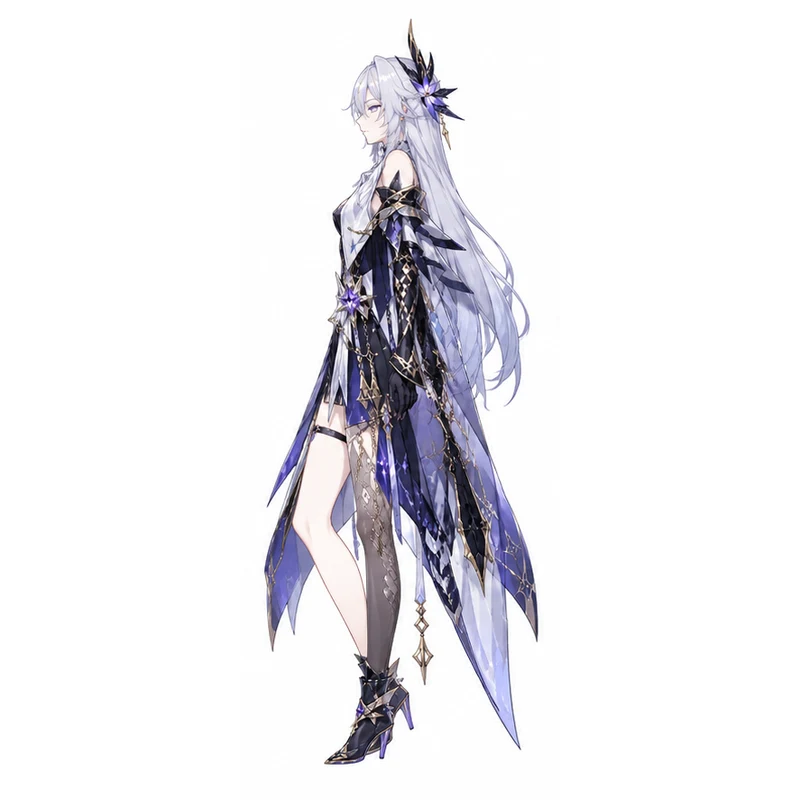
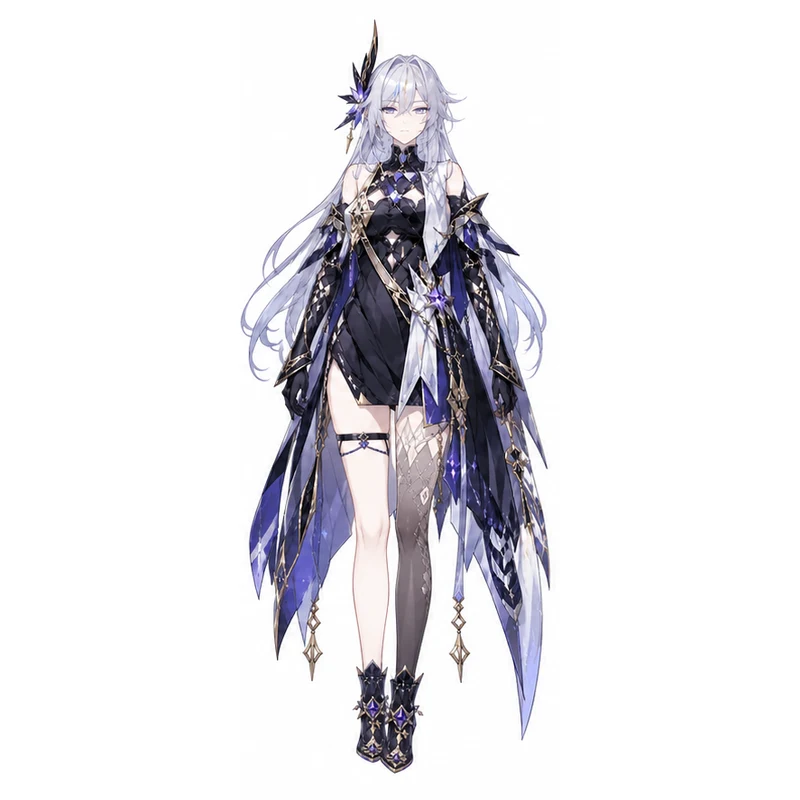
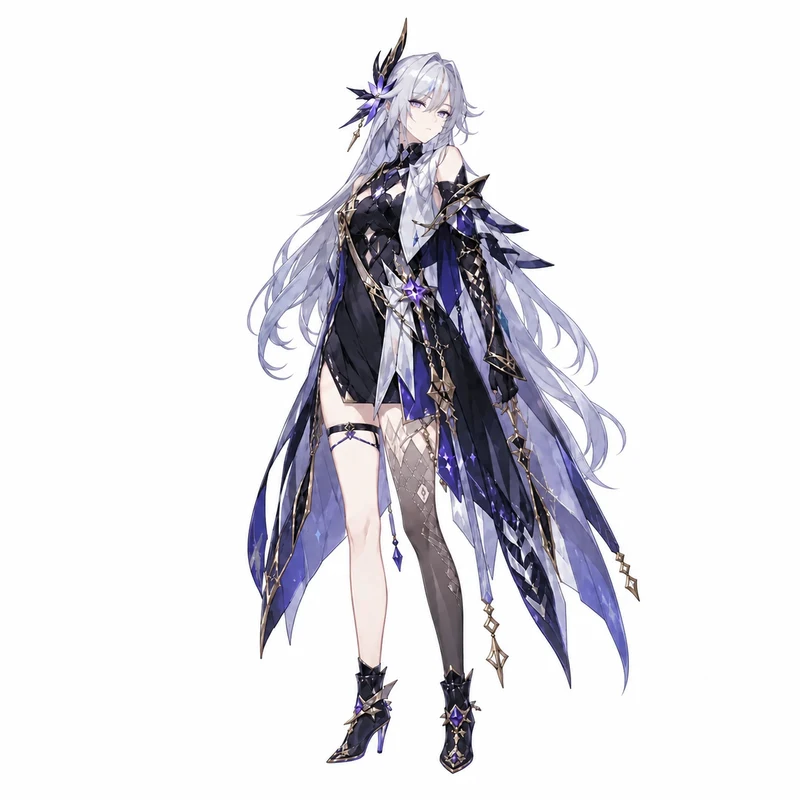
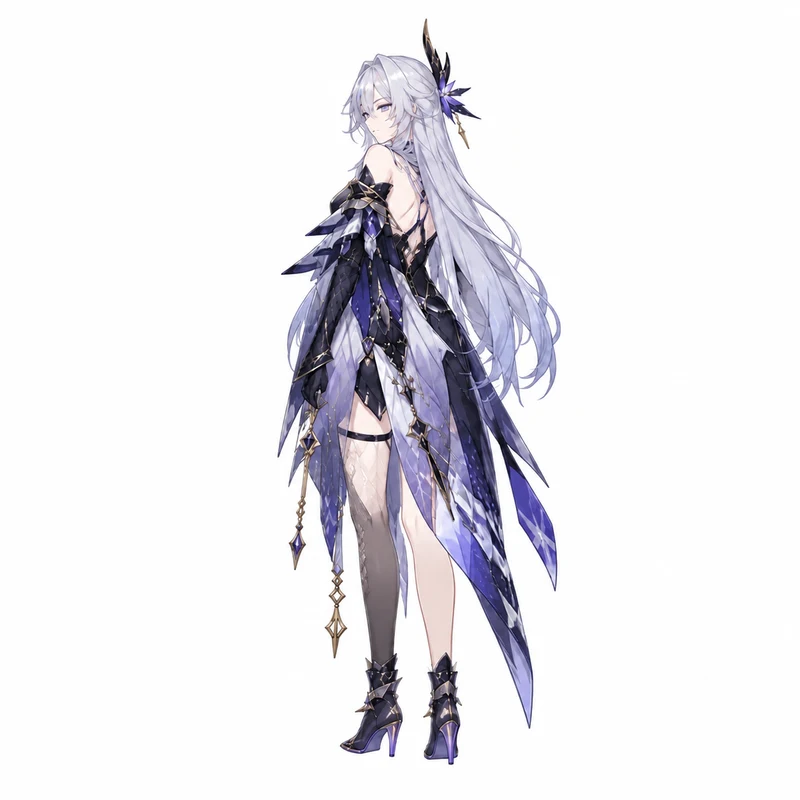
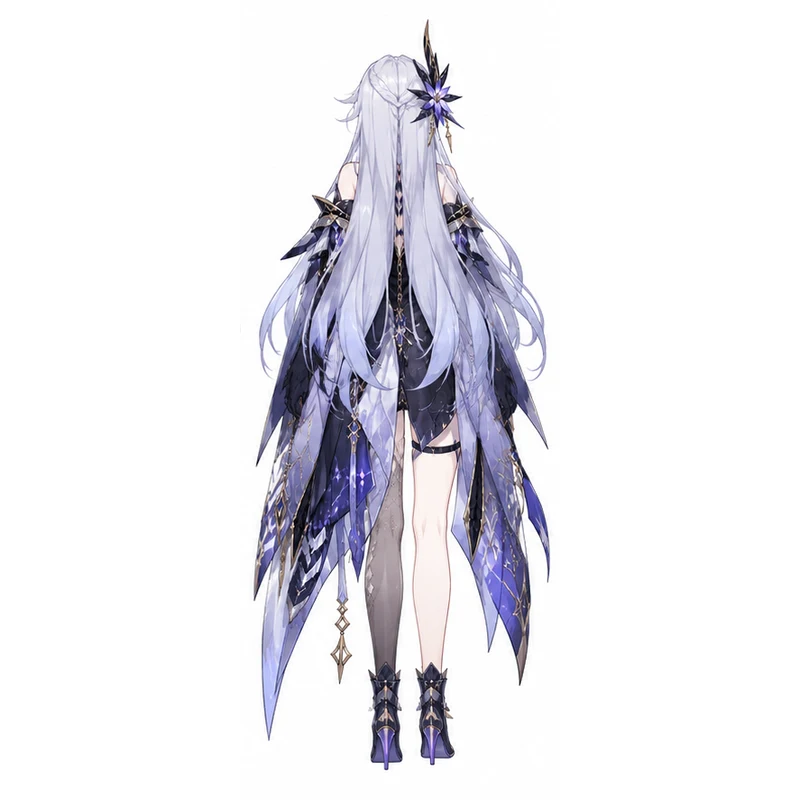
Explore Front, Side, and Back Views
Start with one clear character image and choose a full turnaround sheet or a specific angle. Compare the silhouette and outfit as the viewpoint changes.
Explore Character Turnaround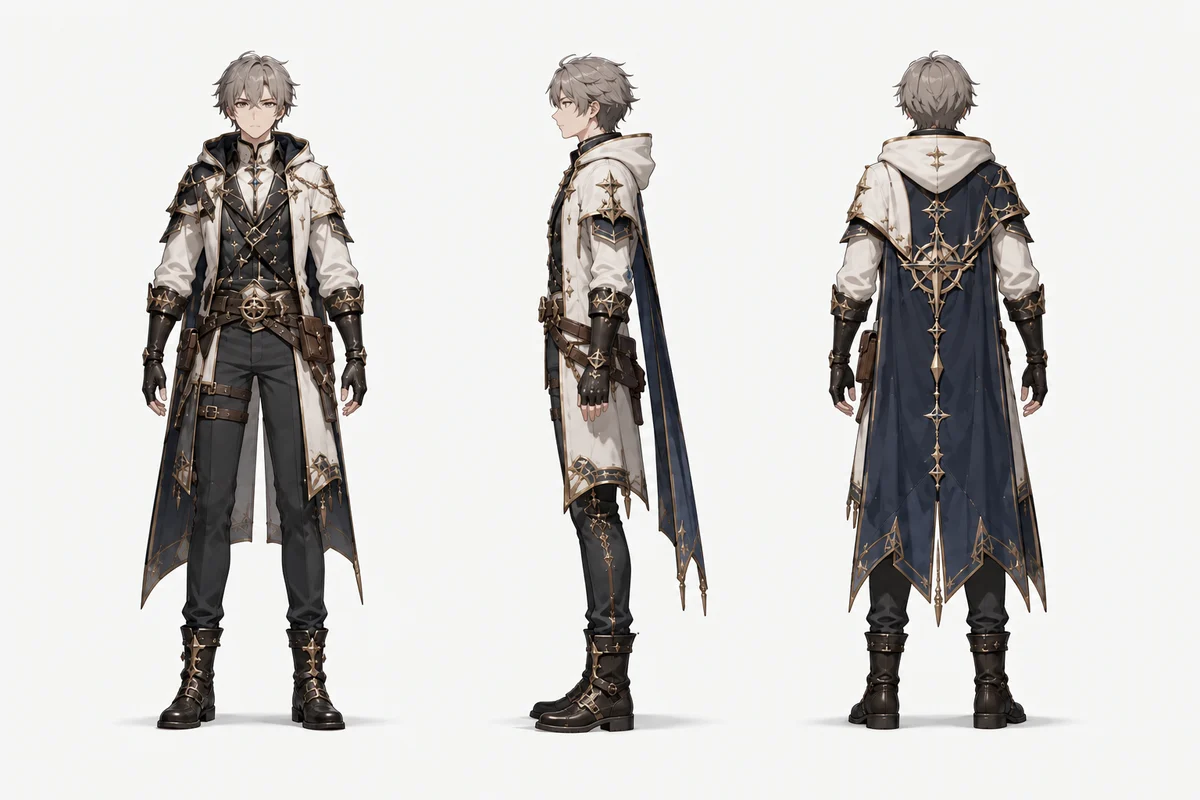
Create a character turnaround from your reference image. Choose a full sheet or a single view to explore the face, outfit, and silhouette from another angle.
Sign in to try it for free
Build visual references that help you discuss a design from more than one side.
Start with one clear character image and choose a full turnaround sheet or a specific angle. Compare the silhouette and outfit as the viewpoint changes.
Explore Character TurnaroundUse alternate views to spot areas that need a clearer design decision: a collar, a cape, or the outline of a costume. Refine the prompt and compare the next result with your source.
Explore Character Turnaround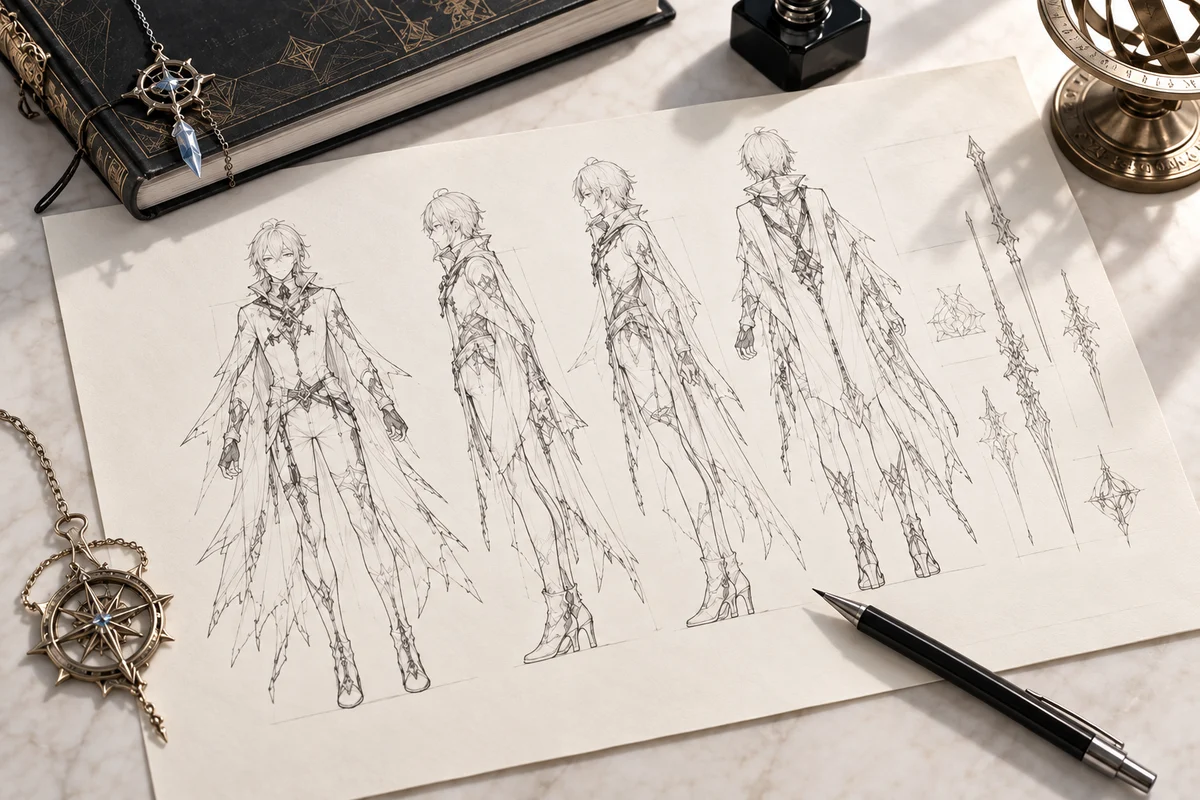
Download the image for an animation brief, a concept review, or a modeling reference board. Treat it as a 2D starting point: check proportions and resolve details before production.
Explore Character Turnaround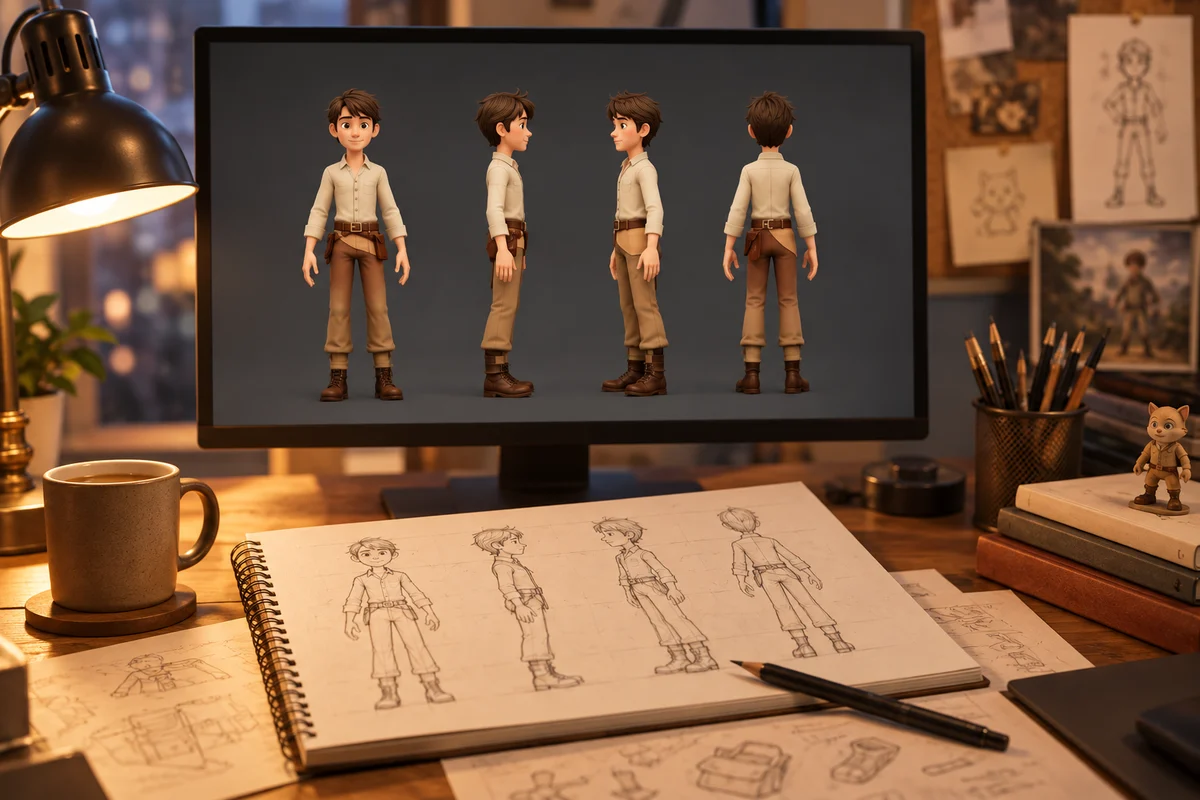
AI-generated examples. Actual results vary.
Compare costume shapes and silhouette before committing to a final design sheet.
Give your team a visual starting point for discussing the character from multiple sides.
Collect 2D angle references for your modeling brief, then verify structure and proportions yourself.
Choose a clear JPG, PNG, or WebP under 10 MB. A full-body view with visible clothing details gives the model more to work with.
Select full sheet, front, side, three-quarter, or back. Choose the resolution and add a prompt for the background, pose, or details to preserve.
Check the credit cost, generate, and compare the result with your original. Download a useful reference or adjust the prompt and try again.
Upload your character and explore the next angle of your design.
Explore Character TurnaroundA character turnaround shows a character from several viewpoints, commonly front, side, and back. This tool generates 2D reference images from an uploaded character image.
Yes. Choose front, side, three-quarter front, three-quarter back, or back. Full sheet mode requests multiple views together.
Not always. AI can change facial details, costume parts, proportions, or areas hidden in the original. Compare each output with your reference and refine anything important.
You can upload an illustration, stylized character, or photo. A clear subject with visible costume details is a useful starting point; results vary with the input.
The workspace accepts JPG, PNG, and WebP images up to 10 MB. Use a sharp image with the full character visible when you need a full-body turnaround.
No. The output is a 2D image that can help with design, modeling, or animation planning. It does not include a mesh, rig, or animated sequence.
A 1K generation costs 10 credits; a 2K generation costs 15 credits. The 2K option requires a paid plan. Check your available credits in the workspace before generating.
Start with a clear reference and describe the pose, background, and details you want preserved. Use a neutral pose for comparison, then review the output and adjust the prompt as needed.