AI Face Angle Changer for Portrait Photos

Start with one portrait. Explore a three-quarter view, a side profile, or a new camera height while using your original photo as the reference.

45°
FrontRightBackLeft
0°
LowEyeElevatedHighTop
5.0
WideMediumClose
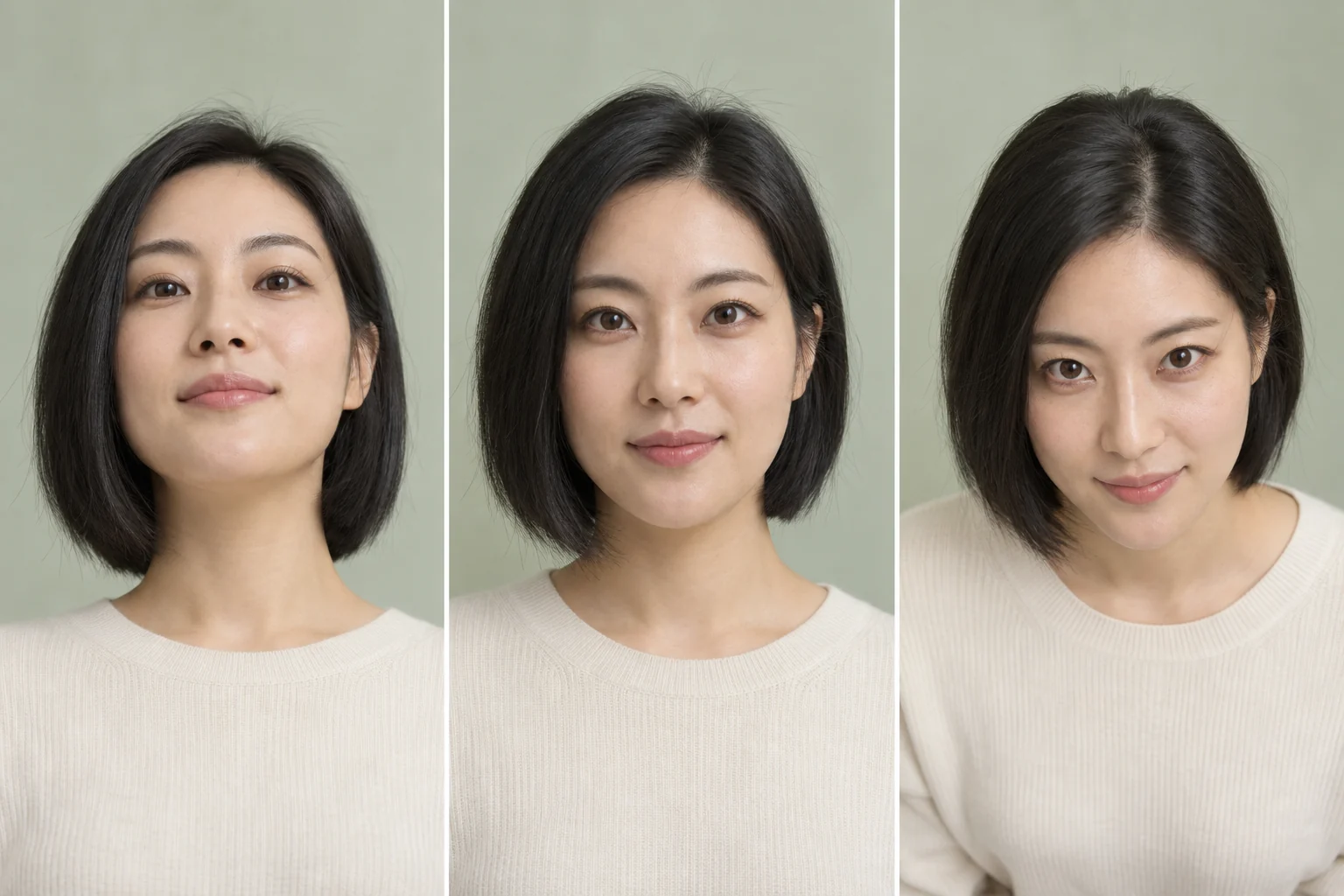
AI-generated comparison of the same woman in front and three-quarter portrait views

AI concept illustration · results vary

Explore Front, Three-Quarter, and Profile Face Angles

Choose an angle for your portrait, then refine how the camera sees your subject.

Three-Quarter Face View

A 3/4 angle face view sits between a straight-on portrait and a full profile. Start at 45° horizontal rotation, keep the camera at eye level, and compare how the cheeks, nose, and jaw read from the new angle.

Change Face Angle
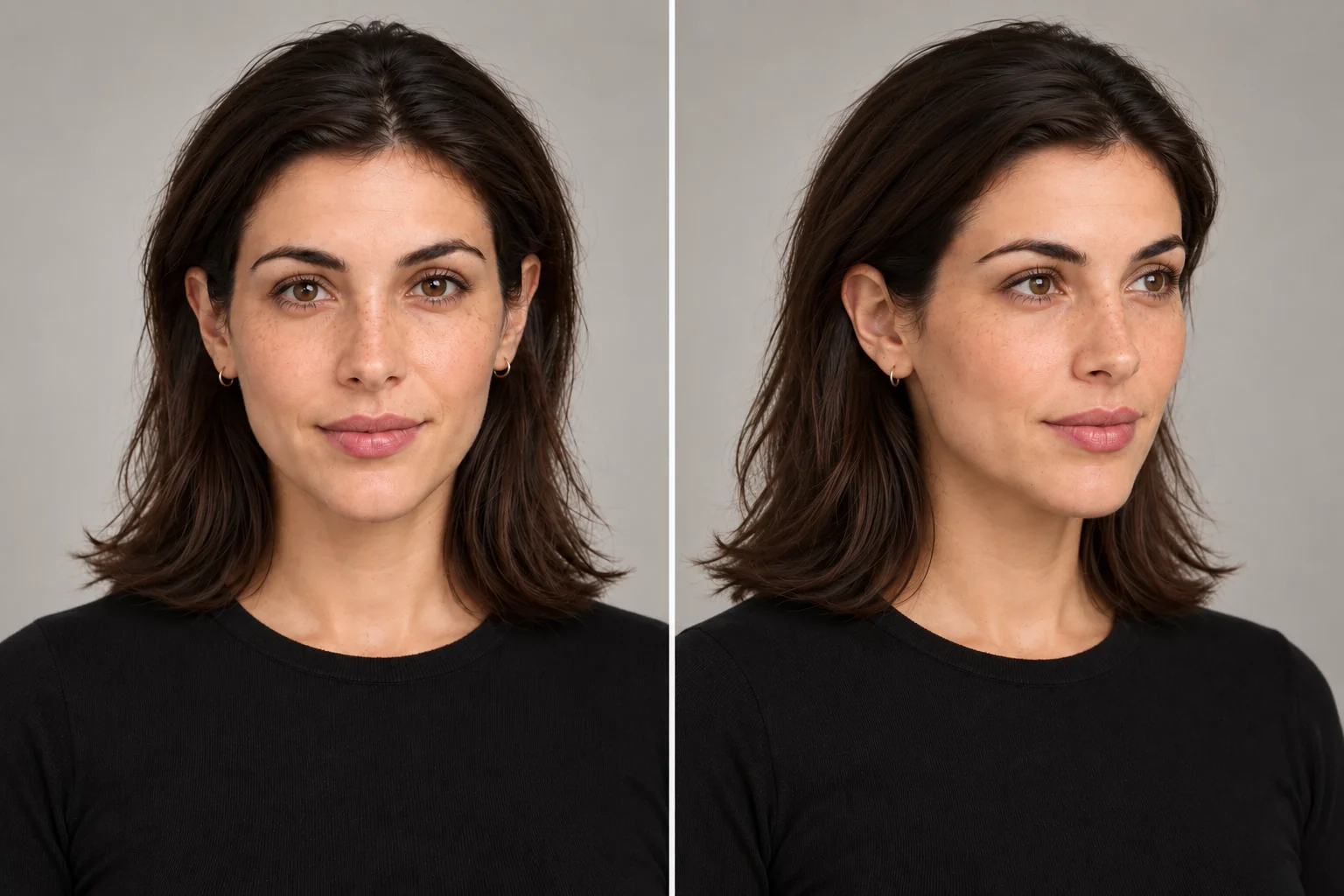
AI-generated comparison of the same woman in front and three-quarter portrait views

Explore a Side Profile

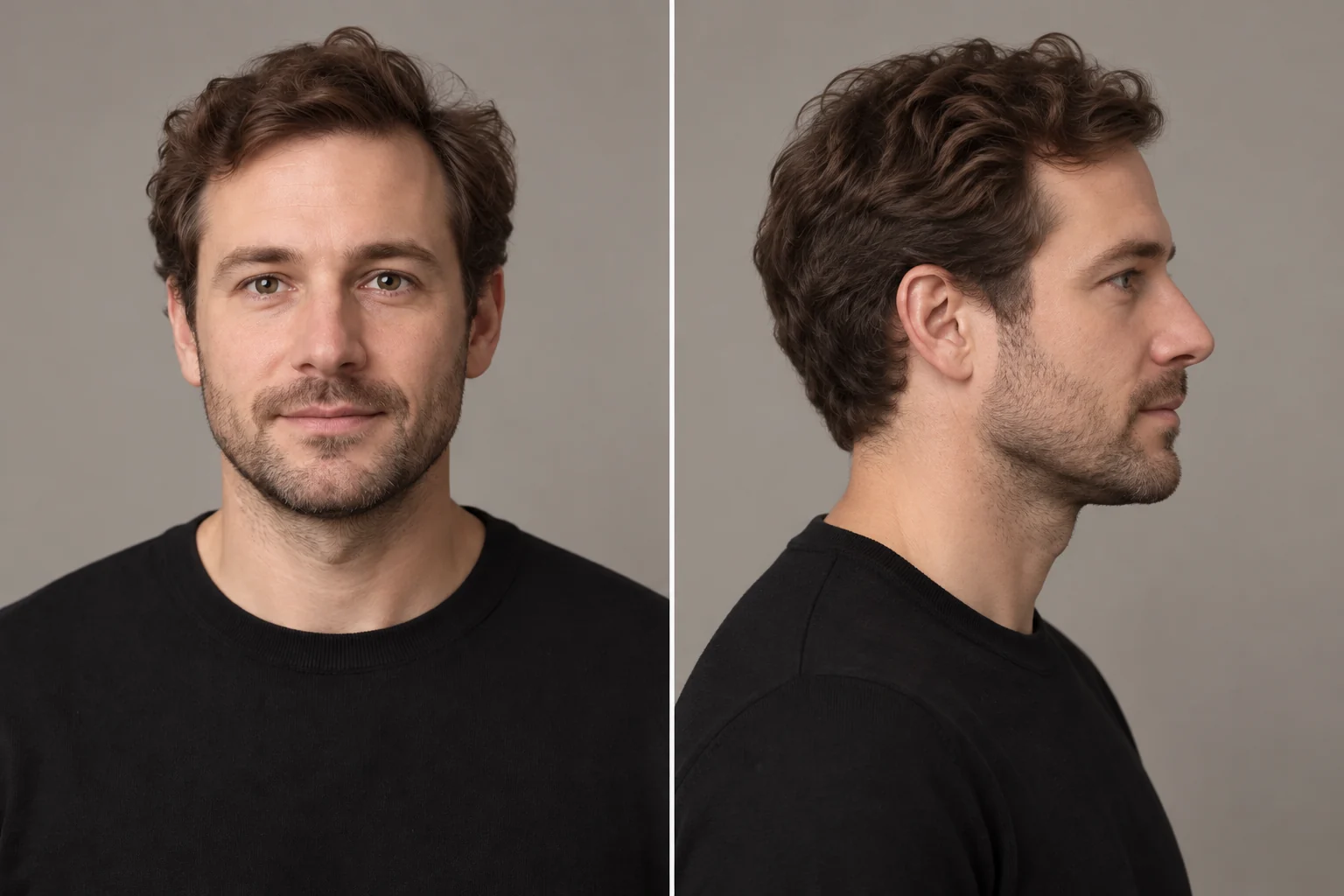
Use the Right Side or Left Side preset to explore a profile. A clear source photo gives the model more facial detail to work with. Review the result for likeness, especially around the nose, ear, and hairline.

Change Face Angle
AI-generated comparison of the same man in front and side-profile views

Face-Angle Changes vs. 3D Rotation

These controls describe a 3D rotation of the viewpoint, but the result is a new 2D image. Raise or lower the camera for a different portrait composition; this does not create an editable 3D head model.

Change Face Angle
AI-generated low, eye-level and high camera views of the same woman

AI-generated illustrations show composition ideas, not verified outputs from this tool. Actual results vary.

Face Angle Changer for Portrait References

Portrait Compositions

Compare front, three-quarter, and side views before choosing the framing for a creative portrait.

Drawing References

Explore how facial features overlap at different angles. Treat generated details as visual reference rather than anatomical measurement.

Character Development

Try alternate face views while developing a character. For a full-body reference sheet, continue with Character Turnaround.

How to Change a Face Angle

Camera direction at a glance
  1. 1Front · 0°
  2. 2Three-quarter · 45°
  3. 3Profile · 90°
  1. 1

    Upload a Clear Portrait

    Choose a sharp photo with one face, even light, and as little obstruction as possible.

  2. 2

    Choose the View

    Start with Right 3/4, Left 3/4, or a side preset. Use Horizontal and Vertical controls to refine the direction and height; keep distance near Medium for a portrait.

  3. 3

    Generate and Review

    Generate the new view, compare the facial details with your source, and download the result you want to keep.

Try AI Face Angle Changer

Bring a clear portrait and choose the viewpoint you want to try.

Change Face Angle

Face Angle Changer FAQ

What is a 3/4 angle face view?

It is a view between straight-on and side profile, often around 45° from the front. Both sides of the face remain visible, but the farther side appears narrower.

Can AI generate a profile-view image from my photo?

Yes. A “profile view image generator AI” uses a reference photo to propose a side view. Select Left Side or Right Side, then review the generated facial features against your original.

Is “face rotate” the same as rotating a photo?

No. A face rotate request changes the apparent viewing angle of the face. Rotating the whole photo simply turns the existing pixels on a flat canvas.

Will the result preserve every facial detail?

The original photo guides the result, but unseen features must be inferred. Likeness can vary, particularly with large angle changes, heavy shadows, glasses, or hair covering the face.

Can I change the camera height as well?

Yes. Keep the horizontal angle where you want it and adjust Vertical to view the face from slightly above or below. Smaller changes are a useful starting point.

Does this export a 3D head model?

No. The output is a generated image. It does not contain a mesh, depth measurements, or a head model that can be rotated in 3D software.