Dolly & Reveal · Example
Dolly In
Glide forward toward the subject at a steady height. Let the foreground and background separate naturally as the framing tightens.
Explore this movement →Explore camera motion from one image. Compare movement references, choose a direction, and use camera controls to set the pace and framing of your shot.
Sign in to generate
Movement example — choose a move to explore the shot.
Find the right motion for your shot. Preview a movement, then apply its direction to your own image.
Glide forward toward the subject at a steady height. Let the foreground and background separate naturally as the framing tightens.
Explore this movement →Move the camera backward from the subject, gradually revealing the surrounding space. Keep the subject as the visual anchor.
Travel halfway around the subject on a smooth circular path. Maintain a consistent camera height and distance as the background changes.
Slide the camera to the right while looking forward. Preserve the horizon and reveal depth through lateral parallax.
Lift the camera above the subject in a continuous rising move. Gradually reveal the wider setting beneath the camera.
Fly smoothly over the scene at an elevated angle. Continue forward with an even pace and a steady horizon.
Explore this movement →A small change in camera direction can change what your audience notices. Choose the movement that serves your shot.
Start wide, then move closer to a product's shape, finish, or texture. Use a dolly-in as your starting point and describe the detail you want the shot to reveal.
Try AI Camera Movement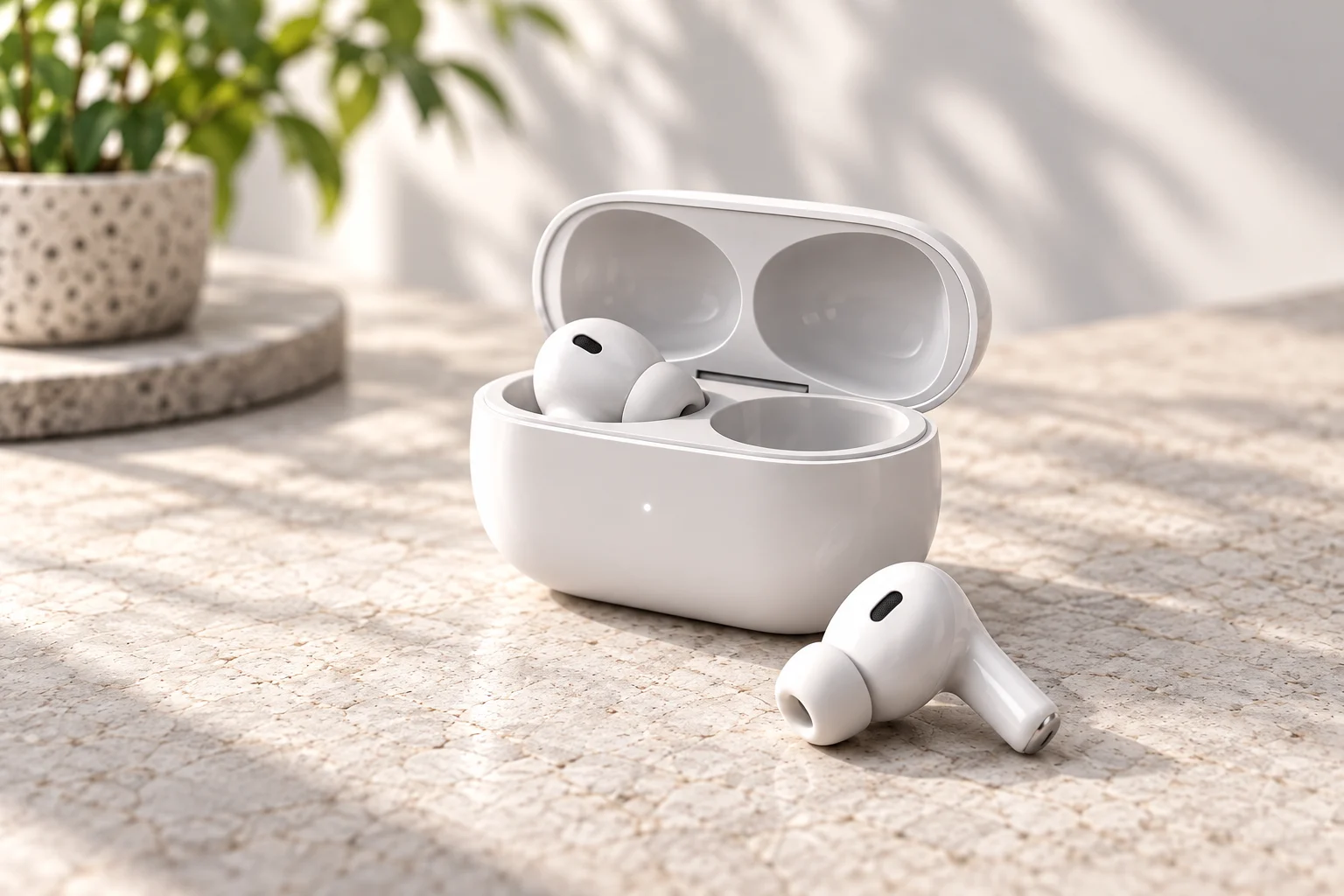
Try a gentle orbit to explore a subject's surroundings, or a tracking shot to follow their movement. Refine the description to keep the person and the camera's motion working together.
Try AI Camera Movement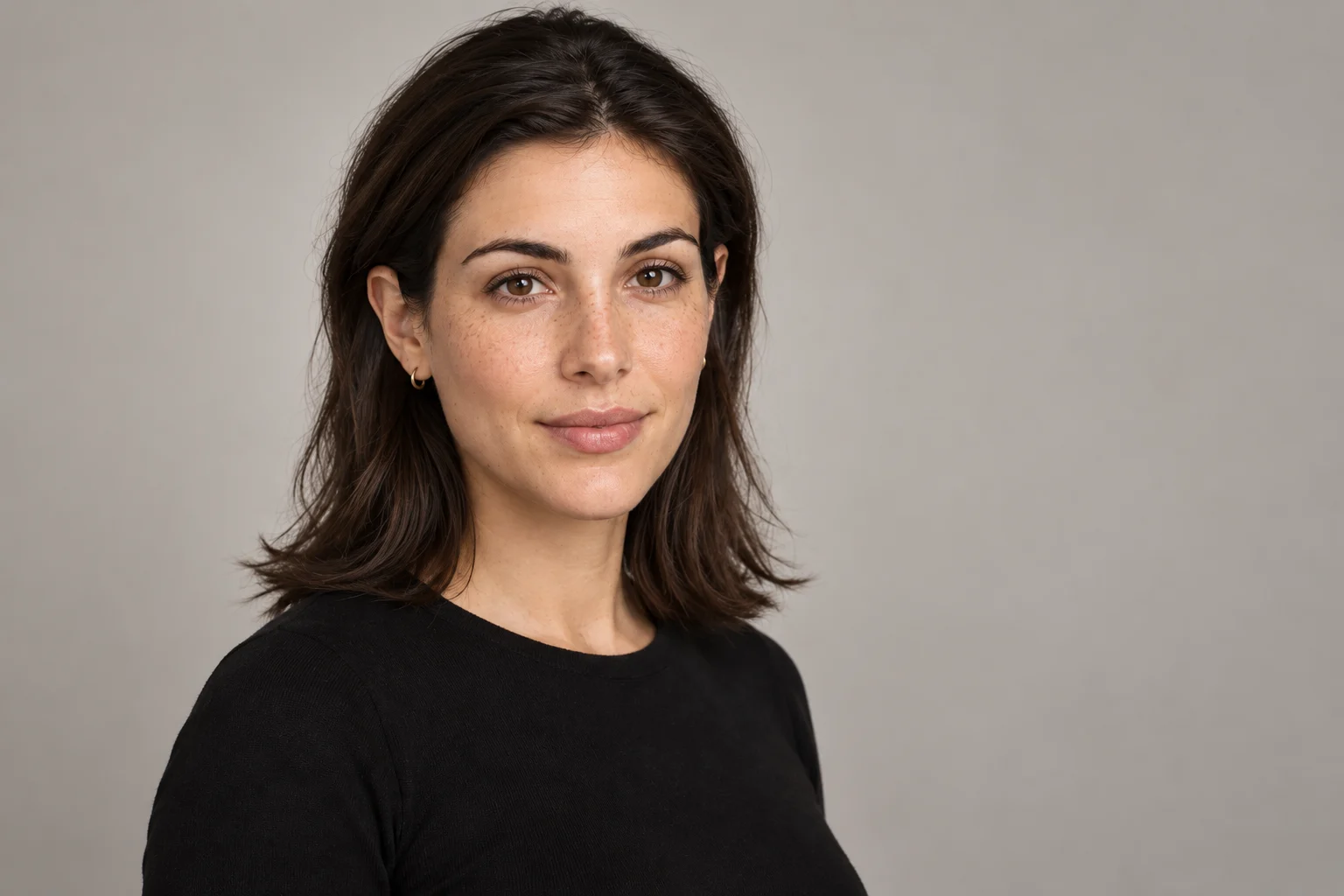
A pullback can reveal the setting; a rising camera can open up the scene. Explore AI camera movement for architecture, interiors, and establishing shots, then set a pace that matches the mood.
Try AI Camera Movement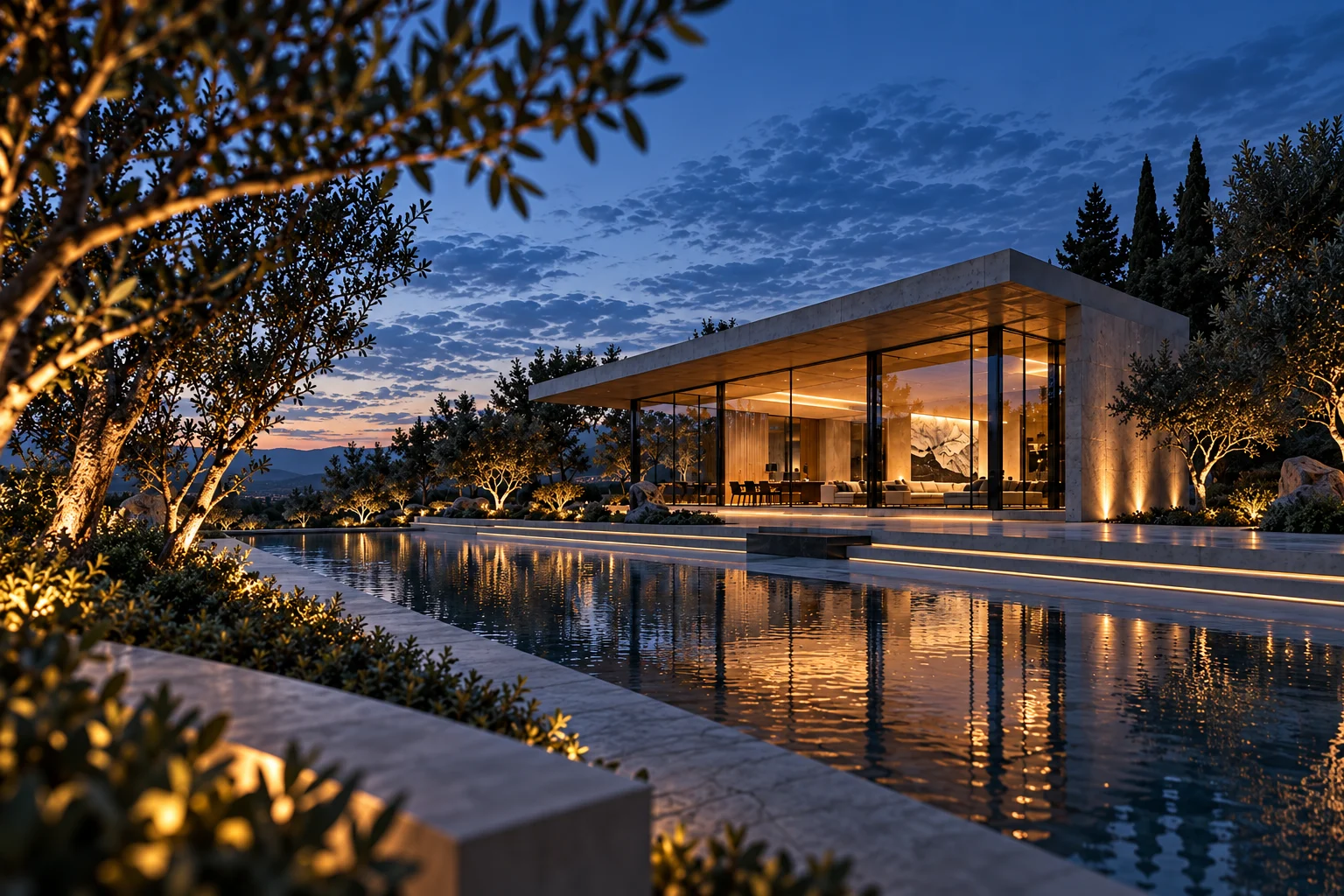
AI-generated scene illustrations. Motion examples are shown separately in the movement library.
Plan a closer look, a slow reveal, or a new perspective around a product. Start with one clear subject and one intentional camera move.
Compare the feeling of a push-in, an orbit, and a tracking shot before deciding how the next scene should unfold.
Explore a new way to introduce a person, place, or product. Use the movement description to match the energy of your idea.
Upload a clear image with a defined subject. Leave enough surrounding space for the camera movement you have in mind.
Browse the motion examples, select a preset, and edit its description. Set the pace, duration, and quality for your shot.
Generate your video and review the result in the workspace. Adjust the movement description for another take, or download a result you like.
Start with an image and choose the movement that brings your next shot to life.
Try AI Camera MovementAI camera movement uses a visual reference and motion instructions to guide how a camera appears to move through a generated video. Common choices include dolly moves, pans, tilts, orbits, and tracking shots.
Start with the purpose of the shot. A dolly-in draws attention toward a subject, a pullback reveals the setting, a pan looks across a scene, and an orbit explores the space around a subject. Use the video examples to compare their feel.
A dolly moves the camera closer to or farther from the subject, changing perspective. A zoom changes the field of view from the same camera position. Their framing may look similar, but the relationship between the subject and background is different.
Yes. Each preset gives you an editable starting description. Camera motion control works best with one clear direction, a defined pace, and a readable ending composition. Add subject action separately when it matters to the shot.
The example helps explain the movement, rather than predicting your exact result. Your image, movement description, scene depth, and subject all influence the generated shot. Clear instructions and a well-defined subject make the intent easier to communicate.
Use a sharp image with a clear subject and readable surroundings. Images with some foreground and background separation are useful for movements that change perspective. Avoid tightly cropping details you want to keep in view.
AI Camera Movement starts with visual presets and an editable motion description. Camera Control for Video uses keyframes and a camera path to plan the shot. Choose the workflow that fits how you want to direct the camera.
No. Choosing a movement changes the preset and its example preview while keeping your uploaded image. The workspace separates your source image, the motion example, and your generated result.